


Virtual Reality Training - Quick Start Guide
Note: This guidance pertains to those who utilize the Virtual Reality service from Training Management Center.
Training Management Center (TMC) makes it easy to quickly enroll Learners and launch Virtual Reality (VR) Training in just minutes. To get started, follow this Quick Start Guide for step‑by‑step instructions.
What you need
Before you begin the process of enrolling a Learner in a Virtual Reality Course, make sure you have:
- Training Management Center (TMC) access
- A compatible VR headset
- Pico Neo 3
- Purchased from J. J. Keller directly (preloaded with the Pixo HubApp), or
- Bring Your Own Device (BYOD) with Pixo HubApp installed
- See Virtual Reality Headsets for more information.
- Pico Neo 3
- Wi-Fi connection
- 1 Standard Enrollment per Learner
See VR 101 and Practicing Safety During VR Training for more information and tips.
Step 1 - Enroll Learners
To start, go to Catalog > Virtual Reality.

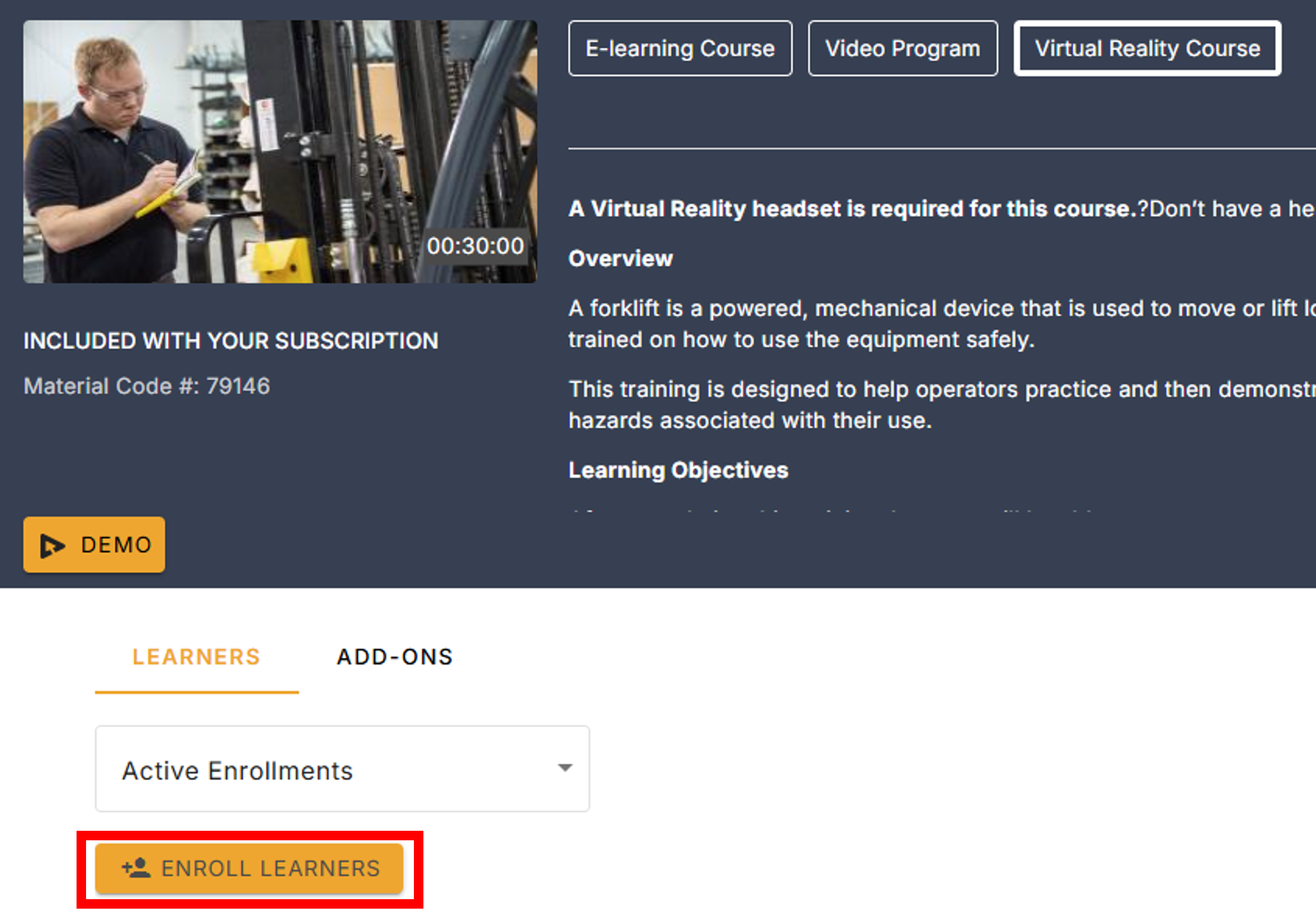
Select a VR Course you would like to enroll a Learner(s) in. Click the hyperlink with the Course Title to open the VR Course page.

Once the VR Course page opens up, click Enroll Learners. For more information about enrolling Learners in a VR Course, visit Enroll Learners in VR Courses.
Note: When a Learner is enrolled in a VR Course, TMC automatically emails each Learner a one‑time VR passcode.
If the passcode expires, it will need to be reset. Visit Reset VR Temporary Passcode for more information.

Step 2 - Prepare the headset & training space
Before starting training, take a few minutes to set up the headset correctly.
Check Headset & Controller Battery
- Press the Power button on the headset.
- Confirm the battery level appears on screen.
- If battery is low, fully charge the headset and controllers before training.
- A full charge is recommended to avoid interruptions during training.
Adjust the Headset for Comfort & Clear Vision
- Loosen the head straps.
- Use the rear adjustment dial or straps.
- Place the headset over the eyes.
- Tighten the straps until:
- The headset feels secure.
- The image is centered.
- The headset should feel snug—not tight—and should not rest heavily on your nose.
Adjust Vision (Lens Position)
- Use the Lens Adjustment Control on the headset to sharpen the image.
- Slowly adjust until text and objects appear clear.
- If glasses are being worn, ensure they fit comfortably inside the headset.
Adjust Volume
- Use the volume buttons on the headset to raise or lower sound.
- Confirm instructions and feedback can be heard clearly before starting.
Prepare the Room
- Clear an open area of the room where the VR Course will be completed. (See Practicing Safety During VR Training for more information.)
- Remove obstacles, cords, or furniture.
- Stand comfortably with enough space to turn slightly.
Step 3 - Start VR Training
- Power on the headset.
- Confirm the headset is connected to Wi‑Fi.
- Open the J. J. Keller–branded Pixo Hub app.
- Enter the Passcode from the email.
*Video does not have sound
After that is complete, enter the J. J. Keller VR Lobby, which includes a short orientation video on:
- Using the controllers.
- Moving within the virtual space.
- Interacting with objects.
Step 4 - Complete VR Training
Each J. J. Keller VR course includes 3 training modes, accessed through doors in the lobby.
- Control Test Mode (Recommended First)
- Guided introduction to VR controls and movements.
- Helps Learners get comfortable before training.
- Not scored.
- Practice Mode (Optional)
- Full training scenario with guidance and feedback.
- Can be repeated as often as needed.
- Score shown, not recorded.
- Evaluation Mode (Required)
- Unguided assessment.
- Measures knowledge and skill retention.
- Score is recorded and sent to TMC.
For more information, visit: What Happens Inside the Headset.
Step 5 - Track Learner Progress
In TMC, Administrators can:
- Monitor Learner progress (For more information, visit Monitor Learning Progress.)
- View Completion Status
- Review Evaluation Mode scores
- Maintain compliance records
Helpful tips
- Advise to take breaks if they feel dizzy or uncomfortable.
- They can adjust the headset any time the image becomes blurry.
- They can re‑enter Control Test Mode if they need a refresher on controls.