


Encompass Video: Scoring/Dismissing Events
The Video Events page in Encompass allows users to score or dismiss recorded Driving Events, helping track Driver behavior and performance. Events can be scored directly from the Grid View, List View, or the individual Event Details page, with the option to apply scores in bulk to multiple Events. Scores follow a recommended scale (Positive, Low Risk, etc.), but companies may define their own use. Users can also dismiss Events, which removes them from Dashboard statistics, and filter specifically for dismissed Events when reviewing data.
Note: This article is about editing Event scores manually. For information on auto-scoring, click here.
First, go to Video > Video Events.

Determining a Score
The chart below is simply a recommendation of how to use the scoring criteria. Ultimately, your company has discretion over how to use these scoring criteria for your employees.

Events can be scored or dismissed in the Video Events Grid View, List View, or Event Details page.
Score from Video Event Card on Events Page: Grid View
In the Grid View, you can score a Video Event right from the Event Details Card by clicking the ellipsis menu > Score button.

Determine and select an applicable score or click the Clear Score button to remove a previously applied score, and click Save.

The selected score will now display on the card.

Score from Video Event Roster on Events Page: List View
In the top right of the Video Events page, click the List button to convert the Events to a listed view. Click the ellipsis menu > Score button.

Determine and select an applicable score or click the Clear Score button to remove a previously applied score, and click Save.

The selected score will now be displayed.

Score Events in Bulk
From the List View, you can select multiple Video Events and give them the same score. Once all Events are loaded, check the box(es) next to the Video Event(s) you would like to score the same. Then, click Score at the top right.

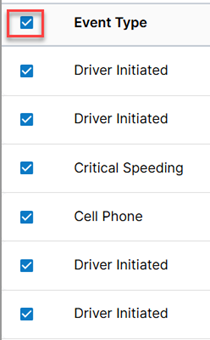
Note: If you would like to select ALL Events in the list to score, check the box next to the Event Type column header. This will check the box next to each Event in the list. *Depending on how many Video Events populate based on your selected filters, you may need to scroll down the entire list of Video Events for the system to load all Events before selecting all to mass dismiss.
Select an applicable score for all Events selected. Then, click Save.

Score on Video Event Details Page
Open an Event's Details page by clicking on the card (in Grid View) or Event Type (in List View).
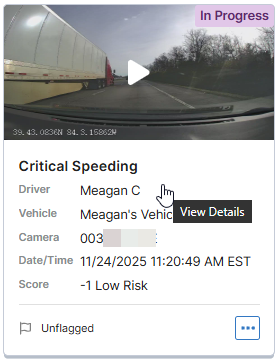

From the Event Details section on the right, click the Star button. Then, determine and select an applicable score.

For more information about the Event Details page, see Video Event Details.
Dismiss an Event
To dismiss an event, first go to the Video Events page.
In Grid View:
Select Dismiss from the ellipsis menu.

In List View:
For a single Event, select Dismiss from the ellipsis menu.

For multiple Events, check the box next to the Event(s) you want to dismiss. Then, click Dismiss in the top bar that appears when boxes are checked.

In the Video Event Details page:
Open an Event's Details page by clicking on the card (in Grid View) or Event Type (in List View).
Scroll to the Action Taken section.

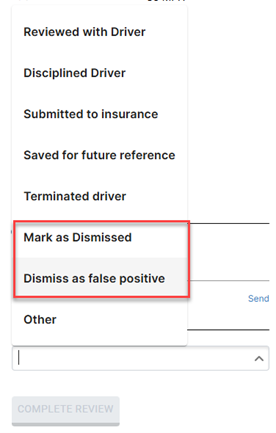
From the dropdown, select Mark as Dismissed or Dismiss as False Positive.
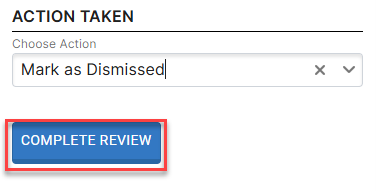
Then, click Complete Review.
To view Dismissed Events, you can use the Event Status filter on the Video Events page. Check the box next to Dismissed (and uncheck all other statuses); the page will load with only those Events that have been Dismissed.

Note: Dismissed Events are not included inDashboardstatistics.