


Encompass Video: Auto-Score Events
Auto-Score allows Video Admin users to set an Event Score that will be automatically assigned to a specific Event Type to save time in the video review process.
First, go to Video > Configuration > Settings.

On the Event Configurations tab, select Auto-Score.

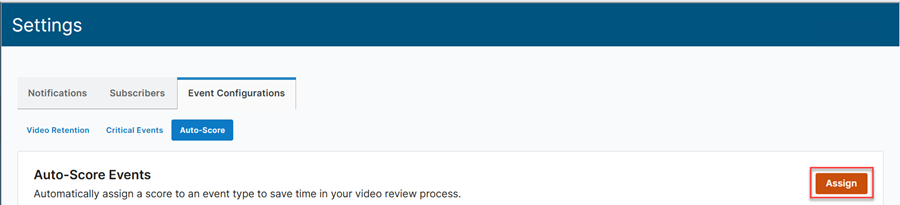
Here you can view any previously assigned auto-score settings, edit/delete settings, or add new ones. To add a new auto-score setting, click the Assign button.
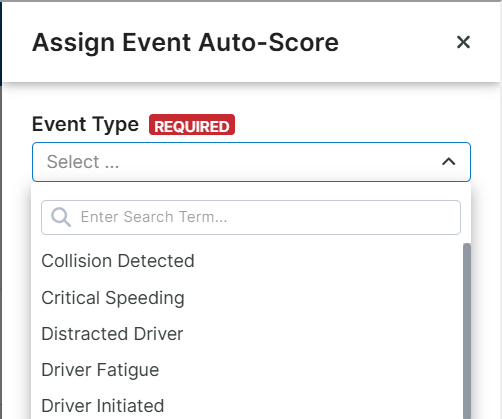
Select an Event Type and a score from the drop downs and click Assign at the bottom of the Assign Event Auto-Score drawer.


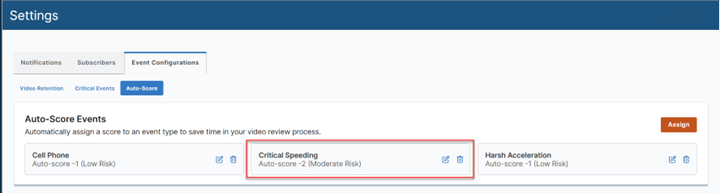
The new auto-score setting will now be visible on the Auto-Score page.
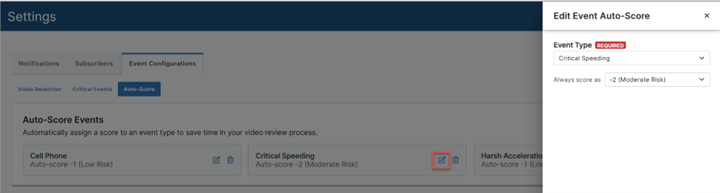
To edit an existing auto-score setting, select the pencil icon, make changes, and click the Save button.
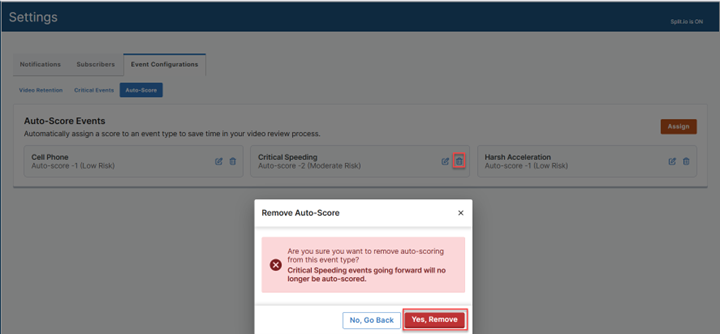
To remove an existing auto-score setting, select the trash can icon and click the Yes, Remove button.
After a new auto-score setting is applied/edited, newly generated Events of the selected type will automatically be assigned the selected score on the Video Events page.
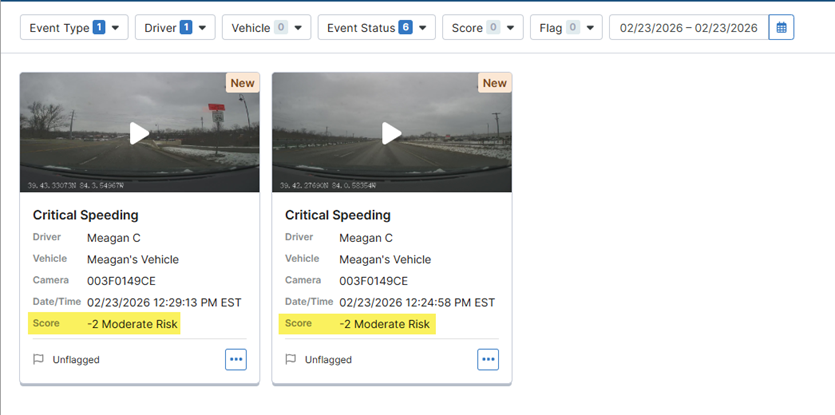
If an auto-score setting is removed, any newly generated Events moving forward will not receive a score, but the previously applied score will remain for any Events prior to the removal.
The score on auto-scored Events can still be manually edited if desired.
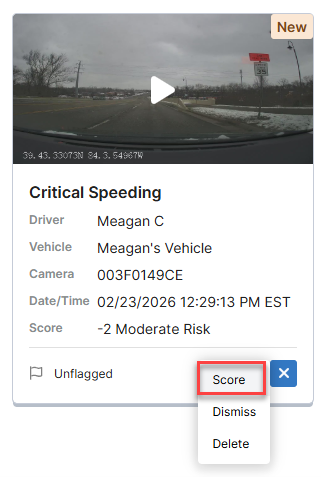
For more information on scoring, see Encompass Video: Scoring/Dismissing Events.