


Navigating the Training Management Center Dashboard
This article walks through the basic structure of the Training Management Center. Use the table of contents to the right or click on the links below to jump to that specific topic.
Pricing Tab
Search Function
Shopping Cart
Additional Menu Items
Dashboard (Home Page)
Upon logging in to TMC, you will see your Dashboard. From here you can view/access:
|
Quick Links to various areas of the system:  |
Access your profile:
|
|
Quickly access content from the Training Catalog:
|
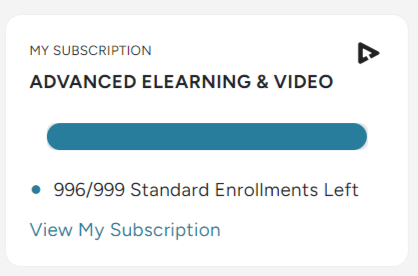
View your subscription and enrollment count information:
|
|
View contact and support information
|
|



💡Helpful Articles: Getting Started in TMC
Catalog Tab
The Catalog tab houses the full training catalog, e-learning courses, classroom programs, video programs, curriculums, etc. You can also access Industries, your Courses, and more from the Quick Access section of this tab.

| Training Catalog: Browse J. J. Keller’s entire catalog of training content, including all formats: E-Learning, Videos, and Classroom Programs. | Classroom Programs: Content designed for instructor-led programs in the classroom and on the job, including supporting materials like PowerPoint® presentations, quizzes, and more. |
| E-Learning Courses: Individual, self-paced courses/learning modules employees take with a quiz at the end and the option to set up reminders, announcements, and print certificates after the training has been completed. Here you can set due dates for completion, set up recurring training schedules, and more. | Classroom Training Events: Set up in-person training sessions by selecting details like the event title, date/time, Classroom Program to be used, trainer, training venue, and more. You can also choose the evaluation method, required passing score, and make the event recurring. From here, you can also update learners' scores within the training event for proof of training and learner records. |
|
Video Library: This page houses a library of full-length training videos and training materials that you can use to supplement classroom training. You can also set up remote classrooms from here.ner records. |
Curriculums: Curriculums are a way of combining several courses/training into one, larger course. This makes it easier to assign a list of courses all at the same time instead of each individually. You can create your own curriculums based on company needs or you can use one of the TMC preset curriculums that break up large quantities of training materials into more bite-sized training pieces to be consumed individually. |
| Industries: Browse all training and filter by compliance area, industry, and topic. | Self Enrollment Courses: Set up courses that allow learners to self-enroll. The training coordinator will not need to assign the training to specific learners in the TMC dashboard, and learners can take the course in the Learning Center. |
| My Courses: If you have your own training courses hosted by J. J. Keller, you can access them here along with courses from third-party providers. | Recently Viewed: Access recently viewed training. |
| Recurring Courses: View and manage all training courses currently set to recur. |
|
Learners Tab
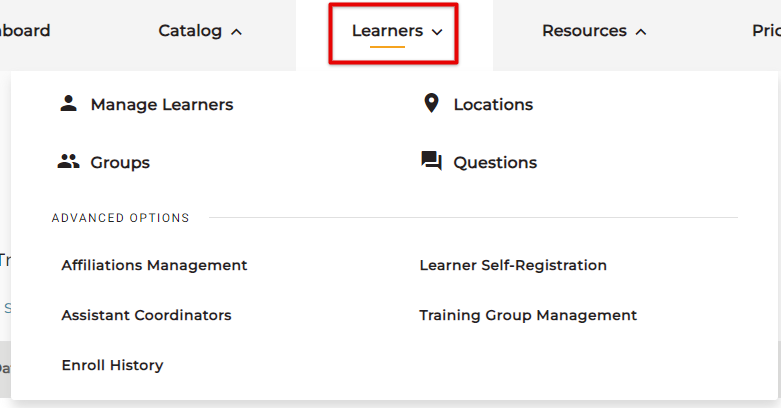
The Learners tab allows you to add/edit/manage your learners, groups, locations, coordinators, and more.
Helpful Articles:
Resources Tab
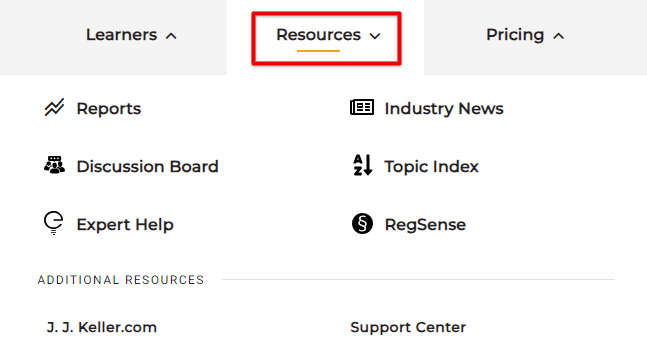
Resources provides access to Reports, Industry News, Expert Help, the TMC support center, and more.
Helpful Articles:
Pricing Tab
View your subscription details, purchase enrollments, and view your order history from the Pricing tab.

Helpful Articles:
Search Function
Located in the top right of your screen is a magnifying glass. Clicking this will open a search feature. Here you can search for specific Training or Learners.

Shopping Cart
The Shopping Cart brings you to a page to enroll learners in specific courses/curriculums. If you've previously added enrollments/courses to your cart in other areas of the site (ie. from the Training Catalog), those selections will show in your cart as well. See Enrolling Learners for more information.

Extra Menu Options and Your Profile
Clicking your initials in the top right of your screen will open up a menu of options. Here you can view your profile, manage settings, view reports and access the Support Center.

Helpful Articles:


