


Renaming an ELD
This article provides instructions for renaming an ELD in the Encompass® system, which may be necessary if the device was initially misnamed or moved to a different vehicle. Users begin by connecting to the ELD, accessing the System Menu, opening Diagnostics, and selecting “Set ELD Config” to update the Vehicle/Unit Number to match the Encompass back office. If the ELD has been moved to a new vehicle, it is recommended to set the Engine Data Bus to Auto-Detect. After updating the vehicle number, Bluetooth pairing prompts must be completed, and the changes will appear on the Encompass® ELD dashboard. Finally, an odometer calibration is required in the ELD app to send the updated information to the back office.
If an ELD was moved to a new vehicle or was incorrectly named during initial configuration, the ELD name can be changed at any time. If the ELD has been moved between vehicles, please see the full guide about moving ELDs in this article.
Rename an ELD
To rename the ELD start by being connected to the ELD.
Go to the menu in the top right and select System Menu.
| ANDROID™ | IPHONE®/IPAD® |
|---|---|
|
|
|
 OR
OR

 OR
OR

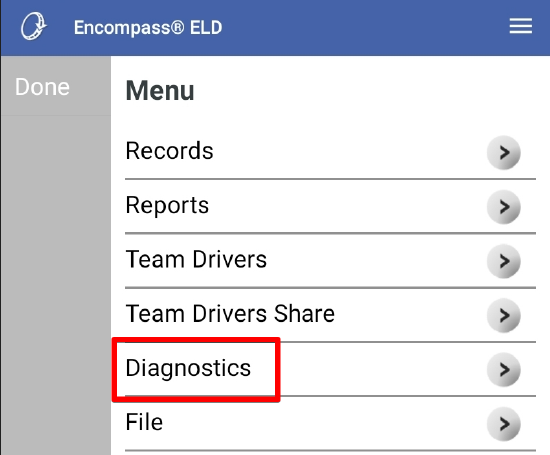
Open Diagnostics.
| ANDROID™ | IPHONE®/IPAD® |
|---|---|
 |
 |
Select Set ELD Config.
| ANDROID™ | IPHONE®/IPAD® |
|---|---|
|
|
 |

Tap in the Vehicle/Unit Number field, clear out any existing value and type in the correct Unit/Vehicle Number. This Unit/Vehicle Number needs to match the corresponding Vehicle/Unit in the Encompass back office.
If the ELD has moved vehicles, it is suggested to set the Engine Data Bus to Auto-Detect Databus. If it has not moved, leave this field as is.
Tap OK (Android)/Save (iOS).
| ANDROID™ | IPHONE®/IPAD® |
|---|---|
|
|
 |

On Android™, answer Yes/Continue/Pair/OK to any Bluetooth pairing requests. On iPhone®/iPad®, the user will be prompted to turn Bluetooth off and back on again. Leave the prompt on the screen and complete this in the device's Bluetooth settings by pressing the Home button on the front of the device to leave the app. Then return to the app and answer the prompt as shown below.
| ANDROID™ | IPHONE®/IPAD® |
|---|---|
|
|
The new vehicle number should then be displayed on the Encompass® ELD dashboard.
Odometer Calibration
Once the vehicle number has been changed on the ELD, the changes need to be sent to the Encompass® back office. To do this, an odometer calibration needs to be completed in the Encompass® ELD application. Follow this guide for steps to complete the odometer calibration.