


Odometer Calibration
This article explains how to perform an Odometer Calibration in the Encompass® ELD mobile application to ensure the engine odometer matches the dashboard reading. Drivers are prompted to calibrate during initial setup and every 30 days thereafter. While connected to the ELD with the engine running, users navigate to Menu > System Menu > Diagnostics > Odometer Calibration, then enter the dashboard odometer reading and confirm. The process applies to both Android and iOS devices, with minor differences in navigation.
While connected to the ELD, select the Menu in the upper right-hand corner.
| ANDROID | IPHONE/IPAD |
|---|---|
|
|
|
 OR
OR
 OR
OR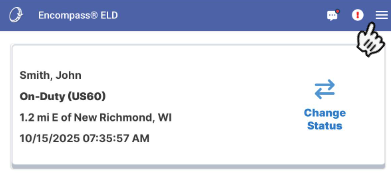
Select System Menu.
| ANDROID | IPHONE/IPAD |
|---|---|
 |
 |
Select Diagnostics.
| ANDROID | IPHONE/IPAD |
|---|---|
 |
 |
Select Odometer Calibration. Depending on screen orientation, you may have to scroll down to see this option.
| ANDROID | IPHONE/IPAD |
|---|---|
|
(Odometer Calibration will not display on Android device if you are not connected to the ELD)
|
 |

Enter the odometer reading on the dash and press OK. Note: The engine must be running to perform the odometer calibration.
| ANDROID | IPHONE/IPAD |
|---|---|
 |
 |