


Logging In
This article explains the daily login process for Drivers using the Encompass® ELD mobile application to record Hours of Service. It outlines the required steps, including launching the app, accepting user agreements, entering login credentials, and providing a Fleet ID if logging in for the first time. Additional options such as checking available hours, connecting to ELD hardware, and selecting log types (including exempt logs) are also covered. The process concludes with selecting a duty status, entering trip information, and accessing the Encompass® ELD Dashboard. Company Administrators are responsible for providing usernames, passwords, and Fleet IDs to Drivers.
Logging into Encompass® ELD
Launch the Encompass® ELD application on your smart device. For information on downloading the app, see these documents for Android™ or iPhone®/iPad®.

An end-user agreement may appear; click Accept.
A safety warning will also appear. Read it and tap OK.

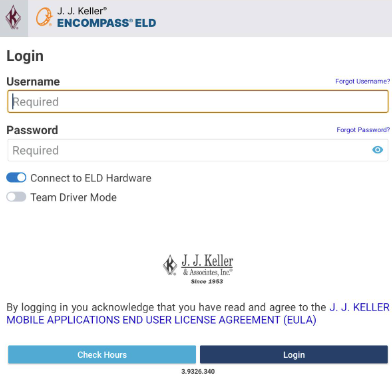
Enter your Username and Password. These are given to you by your Encompass administrator. Then, tap Login.
| ANDROID™ | IPHONE®/IPAD® |
|---|---|
 |
 |
First time logging in?
If this is your first time logging into the app, you will be prompted to enter a Fleet ID. This ID should be provided to you by your company administrator. Your username and password also should have been provided to you by your admin.

The Check Hours button allows a driver to view their available hours without going through the full start-of-day process.
| ANDROID™ | IPHONE®/IPAD® |
|---|---|
 |
 |
If Connect to ELD Hardware is selected upon login, the mobile application will begin connecting to the ELD. See Connecting to the ELD (Android™) or Connecting to the ELD (iPhone®/iPad®).
If Exempt logs are enabled for your company, you will be presented with a screen to Select the appropriate Log Type. Select the Log Type applicable to you. (There are requirements that must be met to qualify to use an Exempt Log. Reach out to your company administrator for questions on Exempt Logs.)
| ANDROID™ | IPHONE®/IPAD® |
|---|---|
 |
 |
Select a Duty Status. Tap Next.
| ANDROID™ | IPHONE®/IPAD® |
|---|---|
|
|
|


Enter Trip Information as applicable. (See Trip Information for more information.) Tap OK.
| ANDROID™ | IPHONE®/IPAD® |
|---|---|
 |
 |
You will then be brought to the Encompass® ELD application dashboard.
 Or
Or 