


Logging Out and Certifying Logs
This article provides step-by-step guidance for Drivers on logging out of the Encompass® ELD mobile application and certifying their logs to maintain FMCSA compliance. It explains how to select the appropriate duty status upon logout, adjust the start time if necessary, and enter the vehicle’s location if not connected to the ELD. Drivers are also instructed on reviewing and certifying any pending logs before submission, with a reminder that logs must be certified from the same device on which they were recorded. Troubleshooting steps for submission failures and notes on additional submitted data, such as unidentified events or trip details, are included.
*Did you forget to log out? See: Driver Forgot to Log Out for further guidance
Logging Out
Select Log Off in the lower right hand corner.
 OR
OR 
Select the Duty Status upon Logout. If this is the end of the work day, this should be Off Duty or Sleeper Berth.
| ANDROID™ | IPHONE®/IPAD® |
|---|---|
|
|
|
 OR
OR
 OR
OR
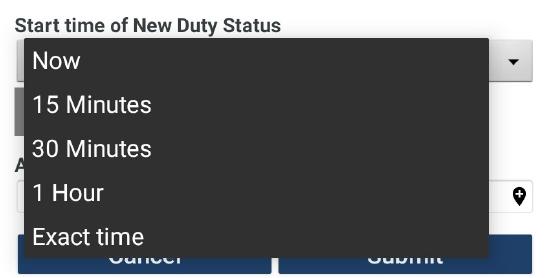
Select the Start Time of this New Duty Status. Most often, this should be set to Now. This can be adjusted to a future time if the remainder of the working day is going to be occurring away from the truck or the phone/tablet. Note: if a future time is selected, the next time the driver logs into the application, they will be prompted to certify this log date because future times cannot be certified.
Example: Driver has finished driving for the day but has a 30-minute meeting with his supervisor and will then be relieved from work duty for the day. He can set his duty status upon logout as Off-Duty and change the start time of the off-duty status to 30 minutes. Encompass® ELD will extend the current status 30 minutes into the future and then place the driver off duty.
| ANDROID™ | IPHONE®/IPAD® |
|---|---|
|
|
|
 OR
OR
 OR
OR

If not connected to the ELD, the application will ask for a location. This can manually be entered in, or, select the locator pin on the right side of the Actual Location field to have the application use GPS to populate the field. Click Submit when finished.
| ANDROID™ | IPHONE®/IPAD® |
|---|---|
|
|
|

 OR
OR
Any other logs that have yet to be certified will be listed on the following screen and selected for certification. Once all logs that are needing to be certified are selected, tap Submit.
Note: Failure to certify and submit logs could result in compliance violations with the FMCSA.
Note: The log/s should be submitted from the same device in which the log/s were recorded on.
| ANDROID™ | IPHONE®/IPAD® |
|---|---|
 |
 |
Select Agree to certify the logs.
| ANDROID™ | IPHONE®/IPAD® |
|---|---|
 |
 |
A Submission Status page will be displayed.
If a Failure occurs, make sure your mobile device has a valid internet connection and try again. If the issue persists, contact Support: 1-800-327-1342
In addition to the logs, there may be other data shown as being submitted; these may include Unidentified Events or Other Data (ie. gps and trip data, fuel, and other nonessential data.O)
| ANDROID™ | IPHONE®/IPAD® |
|---|---|
 |
 |