


View a List of Enrolled Drivers
This article outlines how to view and track Driver Enrollment Status in J. J. Keller’s MVR Monitoring within Encompass. Users can access the Active Driver Qualification Roster, open the listbox, and select the Enrolled in MVR Monitoring filter to display Enrollment Status. For ongoing efficiency, a Custom Roster View can be created using Advanced Filters to show only enrolled Drivers, only non-enrolled Drivers, or both. The Custom View can be saved, named, optionally shared with other users, and accessed later via a dedicated tab.
To view a list of your drivers and their enrollment status within MVR Monitoring, navigate to Drivers > Driver Qualification > Active tab.

Next, select  to open the listbox of all possible values which can be display on the roster view. Select Enrolled in MVR Monitoring within the list box

To close the listbox, click anywhere outside of the listbox or enter on your keyboard.
You will now see a column noting if a driver is enrolled in MVR Monitoring.
Want to create a roster view for quick viewing at a later time? Create a custom roster view by:
Select Advanced Filters

Select Enrolled in MVR Monitoring from the Name dropdown. Select is from the Contains dropdown. Select True to include drivers who are enrolled in the custom roster view.
If you want to include drivers enrolled and not enrolled on the custom view, select + add another. Select Enrolled in MVR Monitoring from the Name dropdown. Select is from the Contains dropdown. Select False to include drivers who are enrolled in the custom roster view.

Select the checkbox to save custom view and then Apply.

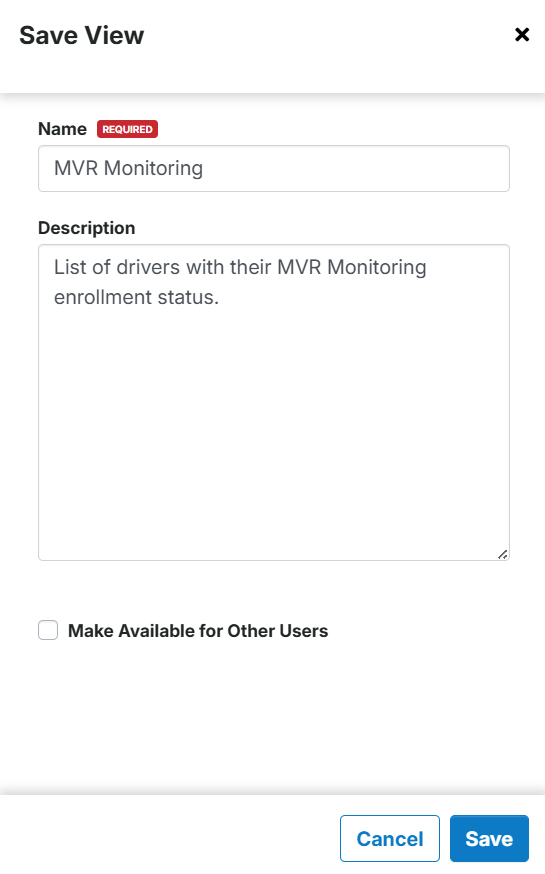
You will then be prompted to give the view a name. A description is optional, but may be helpful. Make Available for Other Users will allow the custom view to be visible by other Encompass users. Click Save when finished.
Once saved, the view will be created as a tab across the top.
