


Reviewing Previous Inspections
This article explains how to locate and review Previous Inspections in the Encompass® DVIR application, including status indicators, defect tracking, and resolution processes. Drivers can search by vehicle/unit to view DVIRs from the past 90 days, as required by regulations. The guide covers how defects are reported, deferred by mechanics, marked as resolved, or flagged as Out of Service. It also details Driver procedures for certifying immediate corrections and submitting updated DVIRs. The process ensures all defects are properly addressed and documented before inspections are closed.
To locate Previous Inspections, tap Inspections on the Homepage and search for the vehicle/unit.
Previous inspections for that unit will display with various flags/text indicators as to the status of the inspection.

The app will only retrieve open DVIRs from Encompass that are or less than 90 days old. This is per regulation that the retention period for all DVIRs is 3 months from the date the report was completed.
Once a defect is reported, the defect must be corrected before the DVIR can be certified as complete by the driver. Reporting the defect as "corrected" can be done by an Encompass® Admin or a user.
Encompass® User/Admin Notes that Updates/corrections have been made to a defect in encompass
Tap on the inspection to review the inspection details.
- Inspection Status- Dependent on if there were defects notes and the states of those defects.
- Inspection Date - The date and time of the inspection.
- Inspection Type - Whether the inspection was a pre- or post-trip inspection.
- Certified/Submitted/Verified By - The person that is indicating that reported defects have been fixed and now needs driver review.
- Vehicle/Unit- The unit the inspection was performed on.
- Inspection Time- time the inspection was first submitted.
- Odometer – The odometer reading of the vehicle at the time of the DVIR being performed (if available) that was entered by the user.
- Certified/Submitted/Verified On- The date/time of the last review of the inspection
- Comments-notes that were entered at the time of the inspection
- Defects-A list of any defects and their status

Deferred Defects
If the defect is unable to be fixed in the moment (ie. a mechanic needs to order parts) the mechanic is able to defer the defect's repair. This is done in Encompass. In the example below, a DVIR for the selected unit initially had reported defects. The mechanic reviewed these in Encompass and indicated that the defect is being deferred, due to having to order parts. Once the mechanic goes through the deferral process, the driver will see a Mechanic Reviewed flag.

Further tapping on the Deferred defects will open notes from the mechanic, along with any initial notes left by the driver.


Once the mechanic marks all defects as resolved, the user can submit the inspection to change it from Mechanic Reviewed to Resolved.

Out of Service Items
To view Out of Service defects, first click into the specific inspection. The defects that are deemed out of service will be marked with a red Out of Service indicator.

Mobile/ELD user/Driver documents that corrections have been made to a defect
Sometimes, when a driver is completing a DVIR, they find a defect, but are able to remedy the issue right away. For example, they find a burnt out headlight on the vehicle, they may be able to replace the light right away. In cases like this, once they submit the DVIR reporting the defect, they can go back into the DVIR and Certify and Submit that the corrections are made and reviewed.
Tap on the inspection to open DVIR details.

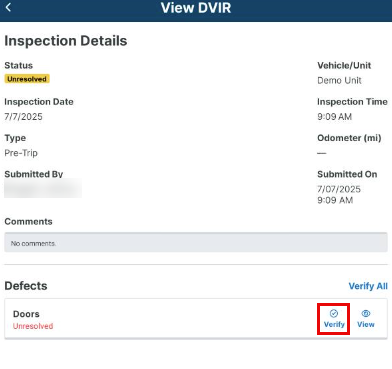
On the DVIR Review screen, tap on the Unresolved defect. Then, tap Verify. Or tap View and then Verify. This will mark the defect as corrected.


>
Then Submit when finished.

The text indicator will display Resolved, noting that the defect has been cleared.