Logging In and Submitting a DVIR
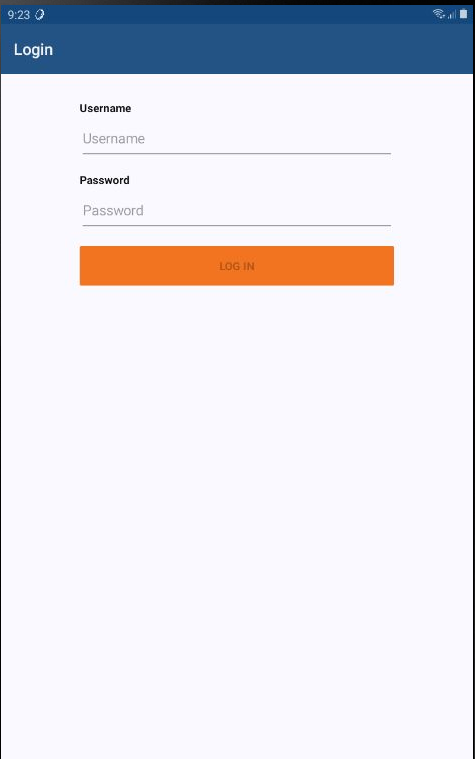
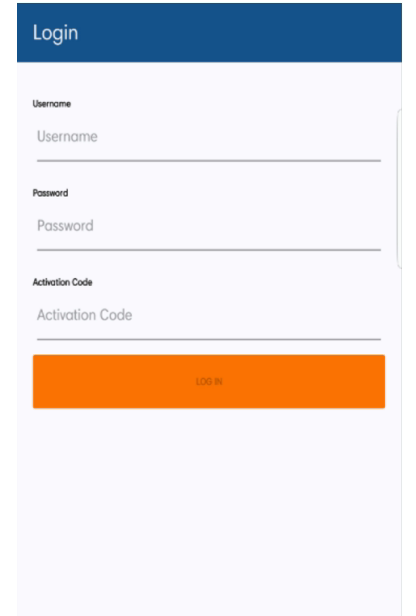
When the DVIR application is launched, the user will be prompted for their username and password. The username and password is created in Encompass via Setup > Mobile User Logins (see *Encompass Activation Code, Usernames, and Passwords*). Note: An Activation Code will be required if this is the first time the user is logging in. Once entered, they will not be prompted for it again. To retrieve the Activation Code, go to Setup > Mobile Company Settings (see *Encompass Activation Code, Usernames, and Passwords*).
An Activation Code will be required if this is the first time the user is logging in. Once entered, they will not be prompted for it again. To retrieve the Activation Code, go to Setup > Mobile Company Settings (see *Encompass Activation Code, Usernames, and Passwords*).
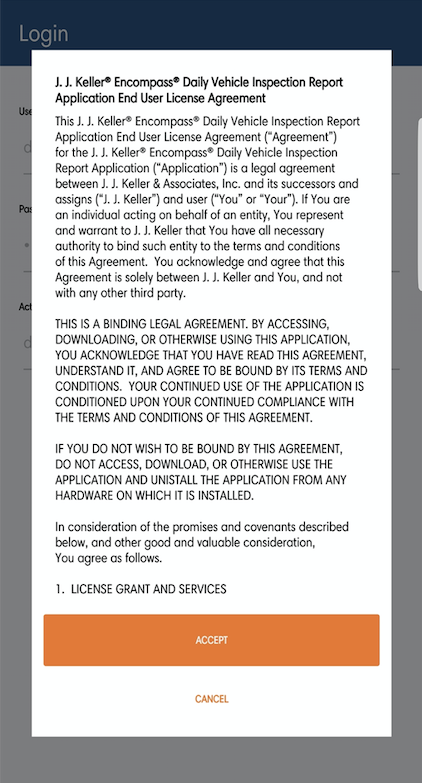
If this is the first time the user is logging in, they will also be prompted to Accept Terms and Conditions.
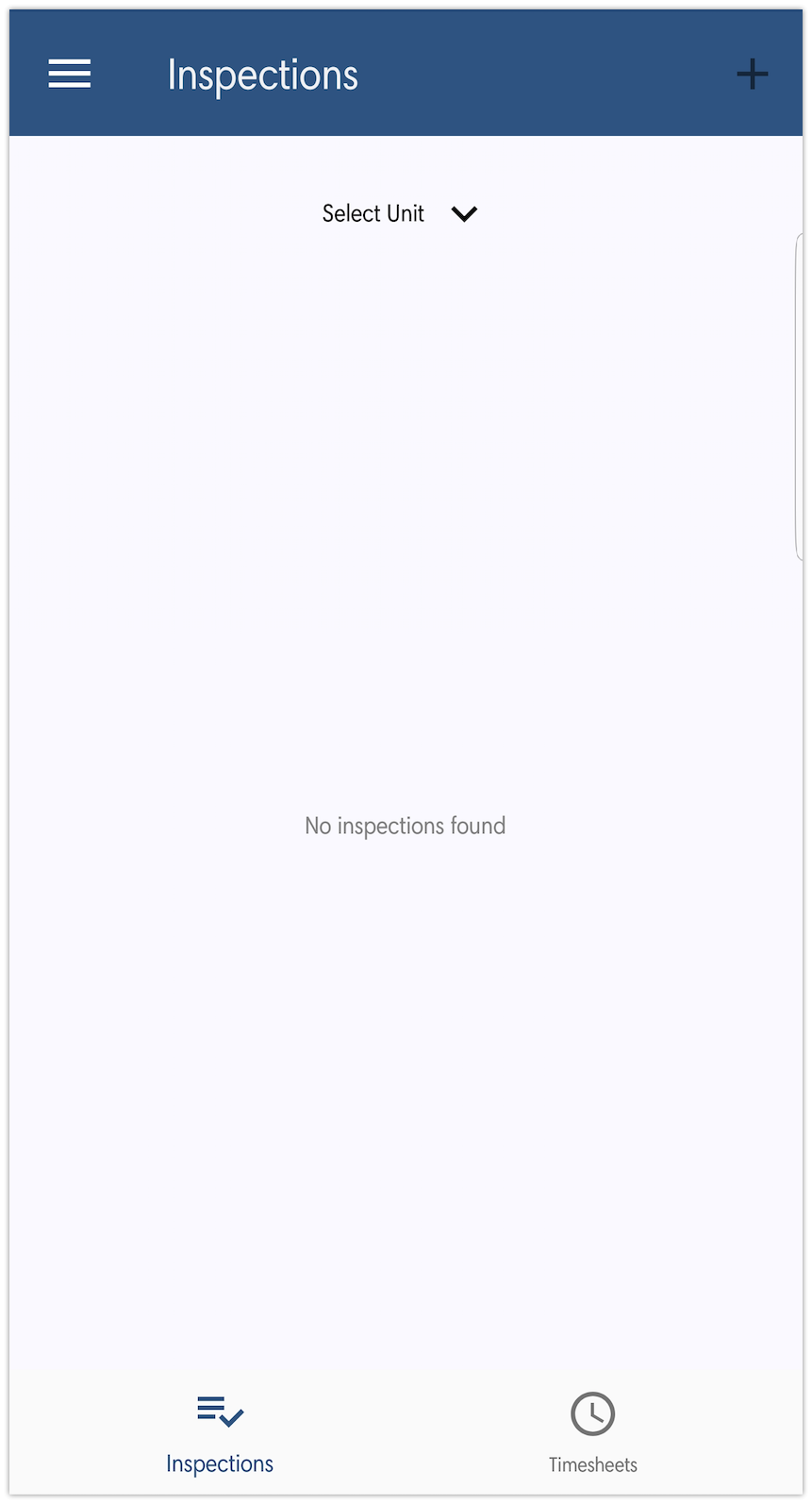
The Inspections screen will then be displayed. Tap on Select Unit.
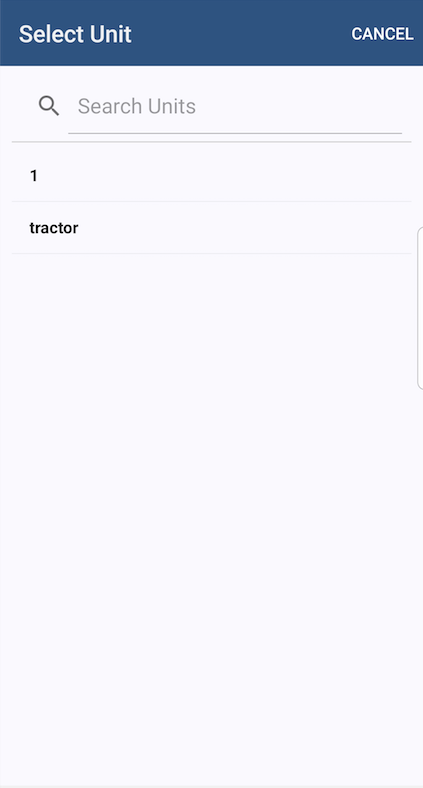
Use the search bar at the top, or select the appropriate unit from the list. This list of units are those entered within Encompass. If the unit is not listed here or cannot be found, then it has not been entered into Encompass.
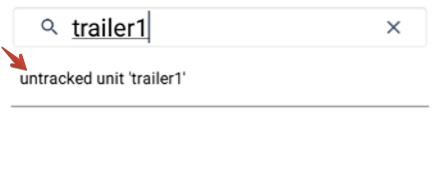
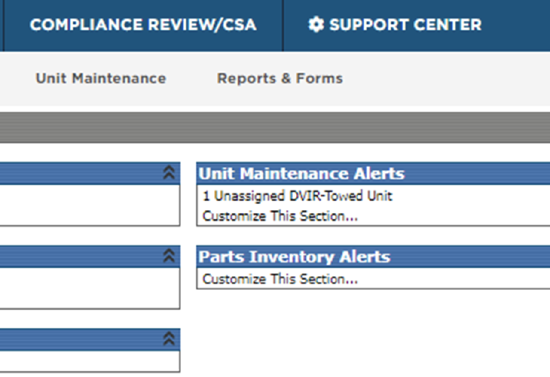
Note: If a trailer has not been added to Encompass, a DVIR can still be completed for it. Enter in the trailer number. If the trailer number is not found in Encompass, it will indicate it is untracked. Once the driver submits the inspection, it will come into Encompass as an Unassigned DVIR-Towed Unit on the Vehicle Management Home Page under the Unit Maintenance Alerts.
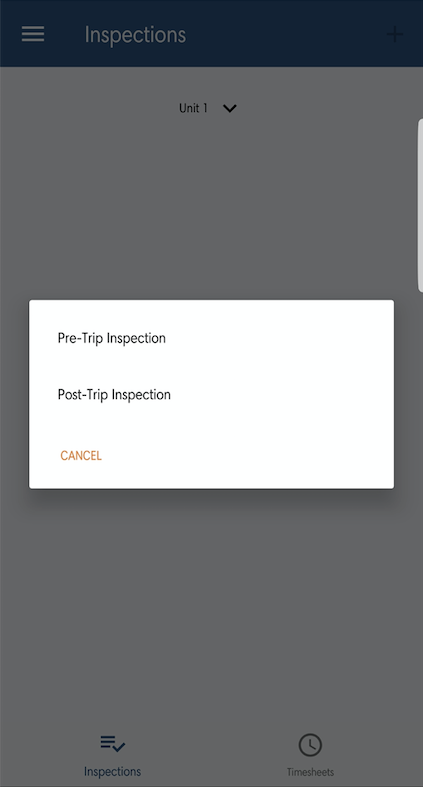
Once the unit is selected, tap the + sign in the upper right hand corner, and select either pre- or post-trip, depending on which kind of inspection is being done.
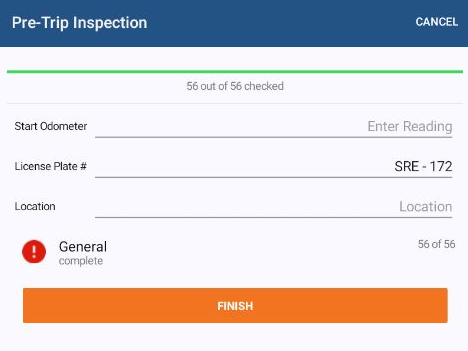
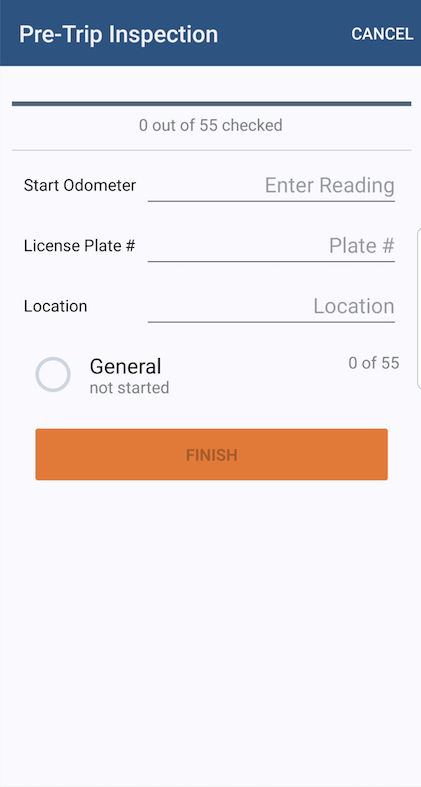
The following screen will have fields for the Odometer, License Plate #, and Location. None of these fields are required by the application, but different regulations may require these fields be entered.
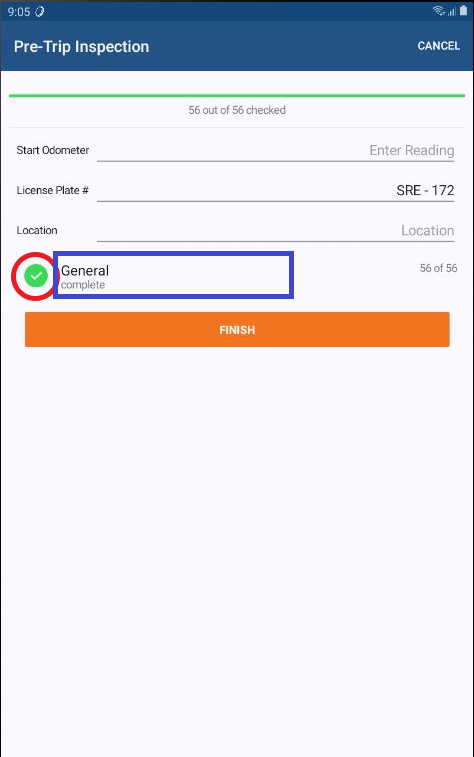
Tap the circle to the left of the inspection category to mark them all as satisfactory. (In red below.) If there were any defects, click on the category to open up the list of items. (In blue below.)
If a defect was found, tap on the circle to the left of the item to "uncheck" it.
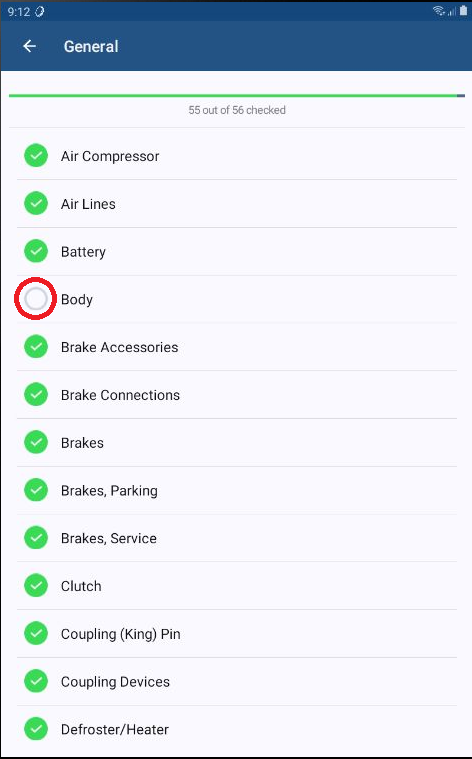
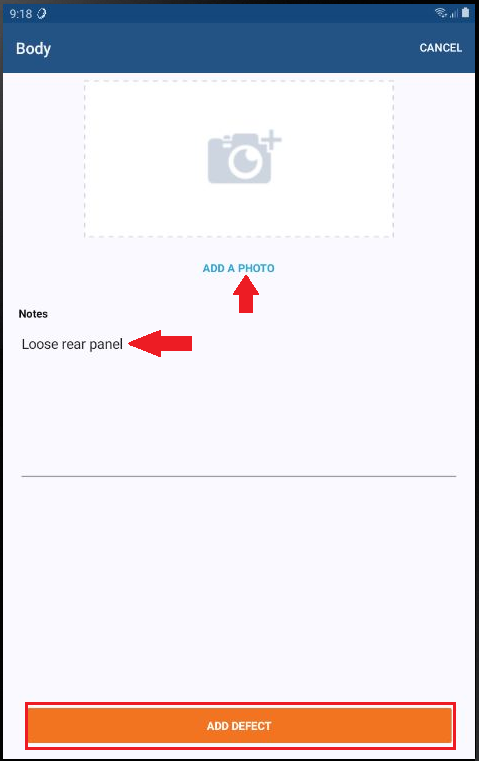
Tap on the name of that defected item and enter any details and a photo (if desired). Click Add Defect when finished with that item.
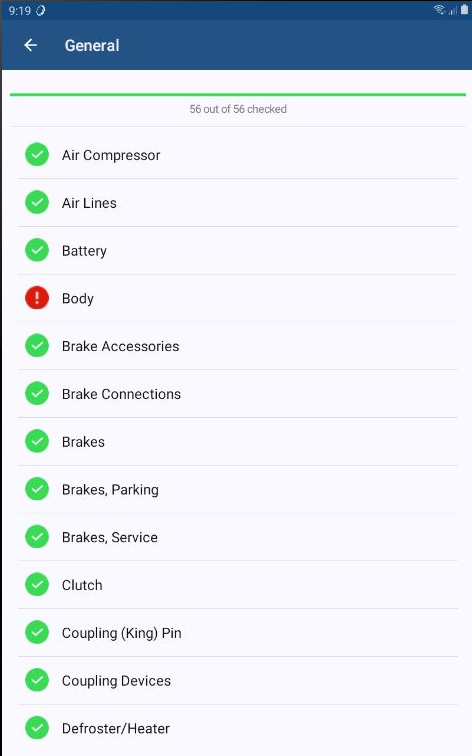
Once all items in a category have been marked indicating whether they are satisfactory or defective, you will see green checkmarks and red exclamations, respectively. The orange button at the bottom will become active to mark that category as Complete and move on to the next category.
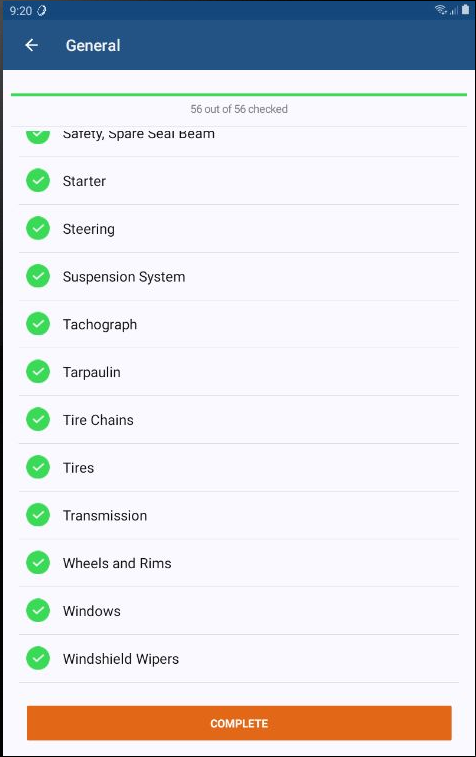
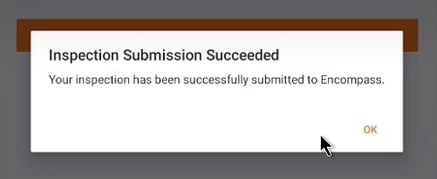
Once all categories have been marked as complete, the orange Finish button at the bottom will become active. Pressing Finish submits the inspection to Encompass. A confirmation message will display on the screen. Press OK.