


Video Events
The Video Events page in VideoProtects® allows users to review, manage, and act on Video Events captured by their Camera fleet. Events can be viewed in either a Table (roster) or Map view, with customizable filters and columns for easier navigation. Users can open Event Details to watch footage, score Events, add Comments, review Event History, and assign recommended Corrective Training. Events can also be Flagged for follow-up, shared with Drivers, or downloaded for records. This page serves as the central hub for tracking and managing Driver Safety Incidents.
To start, go to the Video tab in the left menu and select Events.

Click a link below to jump to that specific topic:
Video Events Page Basics | Viewing Event Details | Flagging Events
The Basics
First, select whether you would like to view the Video Events in a Table (Roster) or Map View by selecting the applicable tab.

Table View will display the Events in a roster list:

Map View will display the Events as icons on a map:

The icons on the right side of the map offer a map legend, as well as customization of the map’s styles, content, and weather displays. Additionally there are options to zoom in/out, reset to North, and find your current location.

Video Events - Filters
At the top of both the Table and Map Views, you can select a specific date range for which to display Video Events.
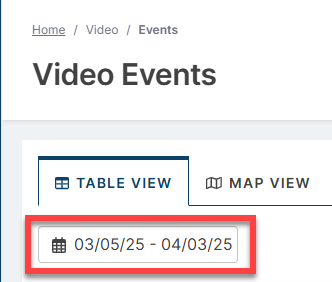
Both the roster and map can be filtered by each column and column views can be customized. Columns can be filtered by clicking Show Filters.

Once applied, Filter options will appear under each column header. For example, you can select specific Event Types to view, specific Drivers, etc.
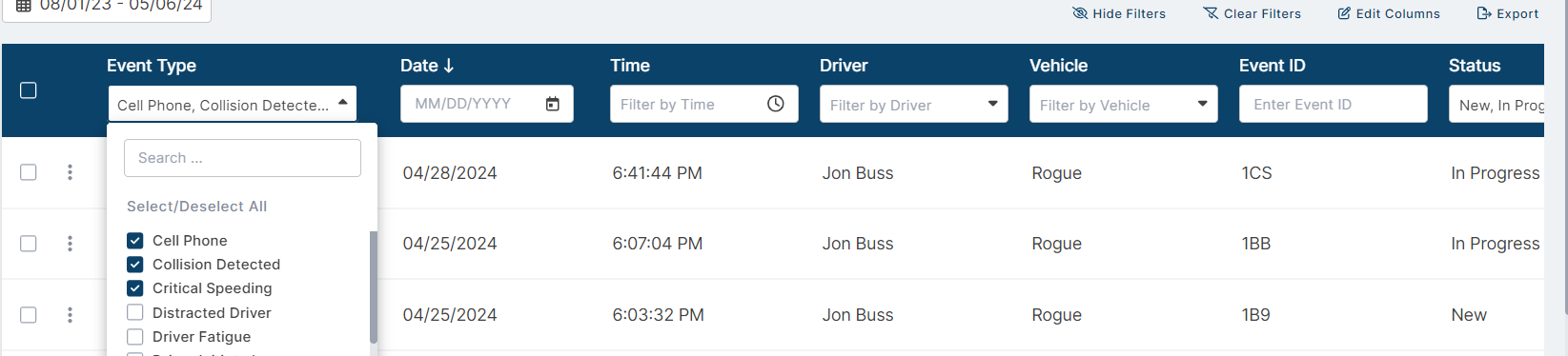
Click Clear Filters to restore the table to its default view.

Click Hide Filters to remove the Filter fields from your view.

To view only specific columns in the table, click Edit Columns.

Uncheck/check any desired boxes to remove/add to the table view. Click Save when finished.

Viewing Events
Table View
To view the Video Event and its details, click on the name of the Event Type in the first column or select the vertical ellipsis button and then View Details.


Map View
To view a Video Event and its details, first locate the desired Event on the map. Events are marked by blue icons for regular Events and red icons for critical. Click on an Event icon to see the Event Type, date/time, Driver, and Vehicle.

Clicking on the underlined Event Type in the pop-up will take you to the Event Details page.

Event details page
The Event Details page allows you to view the event footage, score, determine Actions taken to complete the review, and share the event with the Driver.
Helpful articles:

You can also watch the Video Event, extend it to Full Screen, and/or download the video to your device.

Event Location
The Details page also shows the Location of the event.

Comments
View and make comments about the event in the Comments tab. Tap +Comment to add a comment.

Event History Log
The Event History Log tab displays actions taken on the specific Video Event. You can also download the log, if desired.

Recommended Training
When a driver is assigned to a Video Event and Training Courses are recommended based on the video’s Event Type, those courses will appear at the bottom of the Event Details page in the Recommended Corrective Action Training section.

The tiles will include a description of the recommended course, along with Status Badges reflecting the Learner’s (Driver's) current enrollment status/progress or last completion date for the course.
- If the Driver is not currently enrolled in the course, the tile will display a “Not Enrolled” badge. You can enroll them in the course by clicking the Enroll button.


-
If the Driver is currently enrolled, the tile will display badges with the current status (“Not Started”, “In Progress”, “Failed”) and due date. You can edit the enrollment (due date/minimum passing score) by clicking the Edit Enrollment button.

-
If the Driver has previously completed the course, the tile will display a “Last Completed” badge with the last completed date. You can enroll them in the course again by clicking the Enroll button.

Flagging Events
Users can Flag Events directly in the Video Events table. Flagging Events can be useful to refer to again in the future. Users can also view which Events are flagged by others.

Flagging has 3 states:
- Not flagged by anyone = grey flag/"Unflagged"
- Flagged by yourself/the User = solid red flag
- Click on the flag again if you need to Unflag the event

- Click on the flag again if you need to Unflag the event
- Flagged by a different User = outlined red flag

- Click on the flag for further actions: 1) You can see how many people have flagged this Event. 2) You can add your own flag or 3) Unflag the Event for everyone.

- If you add your own flag to an already-flagged Event, and need to remove your flag, you can click on the flag for more actions.

- If you add your own flag to an already-flagged Event, and need to remove your flag, you can click on the flag for more actions.
You can filter the Flag Status column to view Events flagged by you, by other Users, and/or unflagged Events.

You can also flag an Event within the Event's Details page. Open a specific Event and locate the Flag Status area.

