


Learners
The Learners page in VideoProtects, integrated with the J. J. Keller Training Management Center, allows Administrators to manage Drivers’ Training activity and assign Corrective Action Courses. It displays Learners’ Contact Details, Locations, and Active Enrollments, with filtering and search options to quickly locate individuals. Administrators can use the Bulk Enroll feature to assign multiple Learners to Courses by selecting participants, choosing a Course, and setting Due Dates, Reminders, and Minimum Passing Scores. Once enrolled, Learners receive email notifications with login credentials, Course Details, and deadlines. Enrollment Statuses (Not Started, In Progress, Past Due, Failed, Completed) track each Learner’s progress and outcomes.
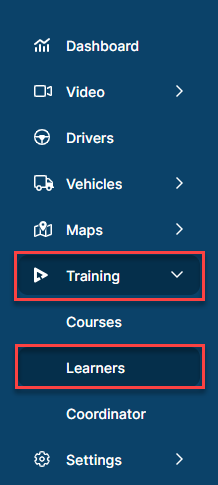
Access the Learners page in the side navigation panel under Training.
Learners (aka Drivers) are displayed here, along with their email addresses, assigned location, and number of active (i.e. In Progress/Not Started/Past Due/Failed) enrollments. Each column offers a filter and/or search option to narrow down the results if needed. Click a Learner’s name to view the Driver Details page, which includes recommended training courses for the selected Learner.

Bulk Enroll
You can enroll multiple Learners in a course at once using the Enroll button on the Learners page.

First, you will be prompted to select one or more Learners to enroll in a course. Use the search box to locate a specific Learner by name, email, or location. Select the checkbox(es) beside the Learners you want to enroll and click Next Step.

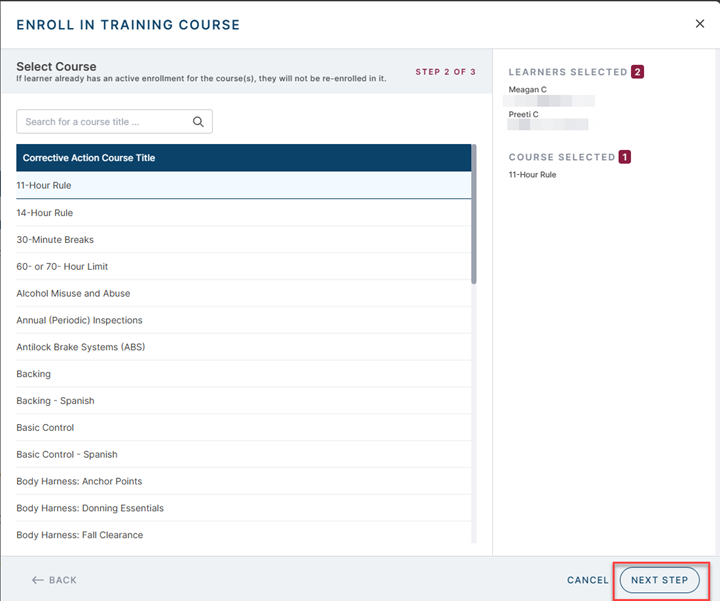
Next, you will select the course in which to enroll the Learners. You can use the search to locate a specific course if needed. Click on the course and then Next Step.
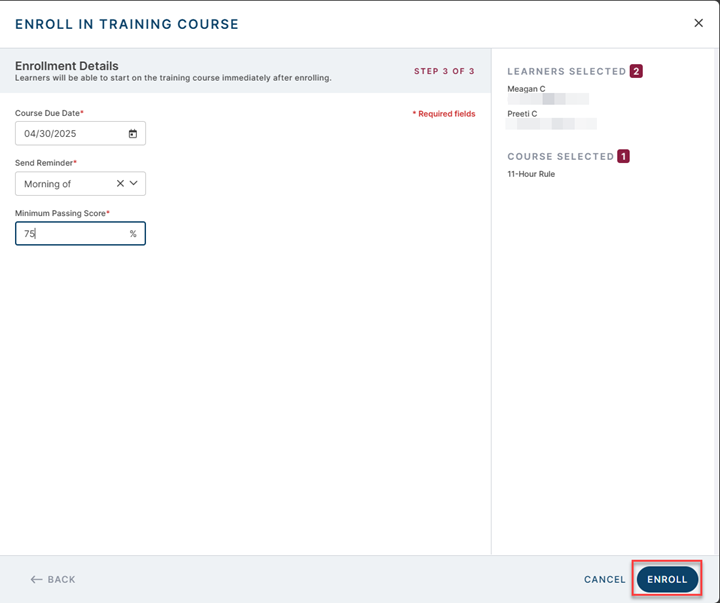
The last step is to enter the Course Due Date, Reminder Date, and Minimum Passing Score for the enrollments.
- Course Due Date – The Learner will be notified that they need to complete the course by this date.
- Send Reminder – The Learner will automatically receive a reminder email to complete the course at the chosen interval before the due date.
- Minimum Passing Score – If the Learner finishes the course with a score less than this, they will be considered Failed and need to take the course again until they receive a passing score.
Once these fields are populated click Enroll.
The Learner(s) will receive an email letting them know which course they’ve been enrolled in and the due date for the course, along with the Username and Password they can use to access and complete the training in the JJK Training Portal.

For guidance on completing the training courses, see Learning Center - J. J. Keller Support Center.
Enrollment Statuses
- Not Started – Learner is enrolled in the course, but they have not started the course.
- In Progress – Learner is enrolled and has started the course but has either:
- Not yet finished the course OR
- Taken the course but did not receive the minimum passing score
- Past Due – Learner has not finished the course with a passing score and the due date has passed.
- Failed – Learner has taken the course but did not receive a score greater than the minimum passing score.
- Completed – Learner has taken the course and received a score greater than or equal to the minimum passing score.
Note that an enrollment can exist in multiple statuses at once – for example, a single enrollment can be In Progress, Failed, and Past Due.