


My Favorites in TMC
The My Favorites feature gives you a quick way to save and access the training content you use most. Instead of searching for the same courses, videos, or curricula every time you need to enroll Learners, you can favorite them once and launch enrollments directly from your Favorites page.
HOw to Access My Favorites
- From the TMC dashboard, click Catalog in the top navigation.
- Select Favorites from the dropdown menu.

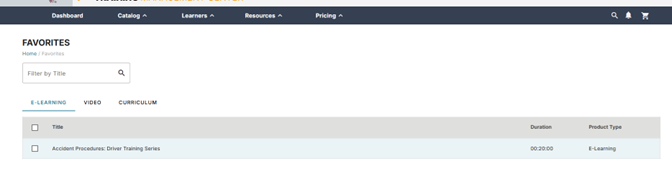
This takes you to your Favorites page, which organizes your saved items across 3 tabs: E-Learning, Video, and Curriculum.
Favoriting an Item
You can favorite any E-Learning course, training video, or curriculum directly from its product page.
-
Navigate to any course, video, or curriculum detail page.
-
Look for the heart with a plus icon (♡+) below the course details.
-
Click it to add the item to your Favorites.
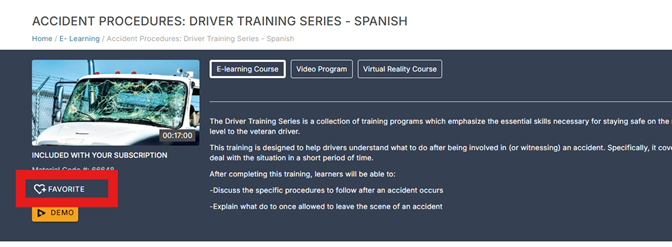
As soon as you click, two things happen:
- The icon changes to a heart with a minus (♡−), showing the item is now favorited.
-
A brief confirmation message appears at the bottom of the screen.

Unfavoriting an item from a product page
If you no longer want an item in your Favorites, you can remove it directly from the product page.
-
Navigate to the course, video, or curriculum detail page.
-
Click the heart with a minus icon (♡−).
-
The item is removed from your Favorites immediately and the icon returns to the heart-plus state.

Your Favorites Page
Your Favorites page is organized into 3 tabs. Click any tab to view your saved items in that category.
E-Learning Tab (Default)
When you arrive at the Favorites page, you land on the E-Learning tab. This displays all e-learning courses you have favorited.
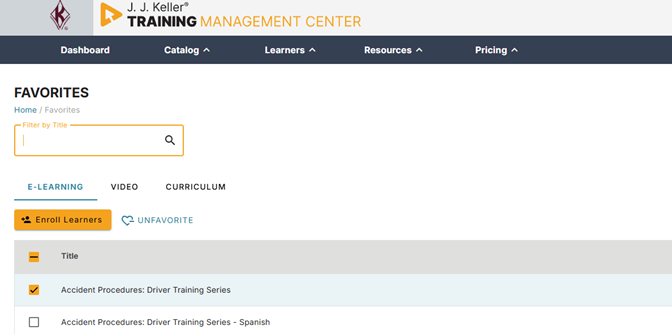
What you can do here:
- Filter by Title — Type in the search box to narrow down your list. The filter applies only to the tab you are currently on.
- Select items — Check the box next to one or more courses.
- Enroll Learners — Appears when items are selected; sends your checked courses directly to the enrollment cart.
- Unfavorite — Appears when items are selected; removes the selected courses from your favorites.
Video Tab
The Video tab displays all training videos you have favorited.
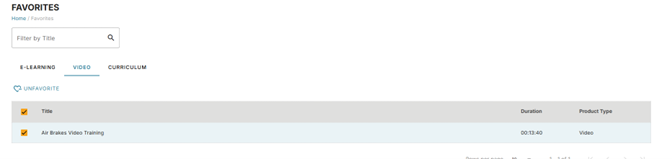
What you can do here:
- Filter by Title — Search within your favorited videos.
- Select items — Check the box next to one or more videos.
- Unfavorite — Removes selected videos from your favorites.
Curriculum Tab
The Curriculum tab displays all curricula you have favorited.

What you can do here:
- Filter by Title — Search within your favorited curricula.
- Select items — Check the box next to one or more curricula.
- Enroll Learners — Sends your selected curricula directly to the enrollment cart.
- Unfavorite — Removes selected curricula from your favorites.
Enrolling learners directly from favorites
One of the biggest time savers with My Favorites is the ability to launch enrollments without leaving the page.
- Go to your Favorites page and select the E-Learning or Curriculum tab.
- Check the box next to one or more items you want to enroll Learners in.
- Click Enroll Learners.
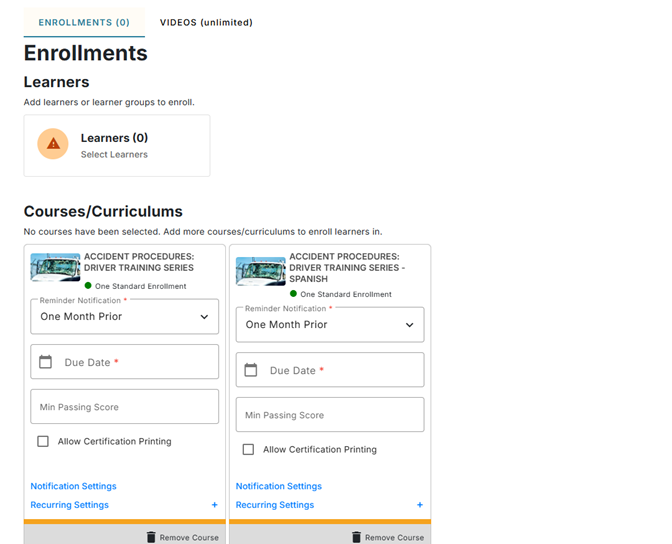
- You are taken directly to the enrollment cart with your selected courses or curricula already loaded.
Removing items from your favorites page
- On any Favorites tab, check the box next to the item(s) you want to remove.
- Click Unfavorite.
- The items are removed immediately and a confirmation message briefly appears.
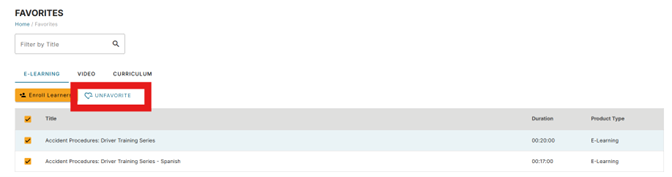
💡 You can remove multiple items at once by checking all relevant boxes before clicking Unfavorite.
Tips & Tricks
| Tip | Details |
| Favorites are yours alone | Your Favorites are personal to your account — they are not shared with other Training Coordinators. |
| Favorite from anywhere | You can favorite or unfavorite an item from its product page at any time, not just from the Favorites page. |
| Alphabetical order | Items in each tab are sorted A–Z by title to make them easy to find. |
| 10 items per page | Each tab shows 10 items per page by default. Use the pagination controls at the bottom to browse more. |
| Filter doesn't carry between tabs | If you have filtered by title on one tab, the filter clears when you switch to a different tab. |
Frequently asked questions
Can I favorite a course from the Favorites page?
No — items can only be favorited from their individual product pages. Use the Catalog to browse and favorite new content.
Will unfavoriting a course unenroll my Learners?
No. Removing an item from your Favorites only removes it from your saved list. It does not affect any existing Learner enrollments.
How many items can I favorite?
There is no limit to the number of items you can add to your favorites.