


Batch Enrolling Learners in Online Courses
Batch enrolling allows you to select several learners and assign them to multiple courses in one streamlined process. This approach is designed to save time and reduce repetitive steps, especially when managing large groups or recurring training needs.
Step 1 - Create Learner Groups
Within the Company Data area, you will define Learner Groups. Creating and using Learner Groups will allow you to group your learners by job function or other responsibility and enroll them in a single batch into any required training.
Simply click Add New Group and name your group(s).

Step 2 - Assign your employees to one or more learner Groups
Within the Company Data area, open your employee list. Filter the list to find and select the employees you want to add to a Learner Group. Once employees are selected, open the Actions side menu and click Update Learner Group.

The Update Leaner Group modal will open allowing you to assign one or more Learning Groups to the selected employees. Select and save the Learner Group selections. Note: within each Employee record you will also see the Learner Group the employee is assigned to.

Step 3 - Select the Courses to enroll your Learner Group(s)
Access the Online Courses feature. Filter and select the courses you wish to enroll your Leaner Group in. Once all your courses are selected, open the Actions side menu and click Enroll Learners.

Upon clicking Enroll Learners, a side drawer will open for you to select your Learner Group(s), and define the requirements for the course(s) (ex., due date, passing score, certificate printing). Once you have your course rules set, click Save. SMS will validate that you have the enrollments you need before you click Enroll.

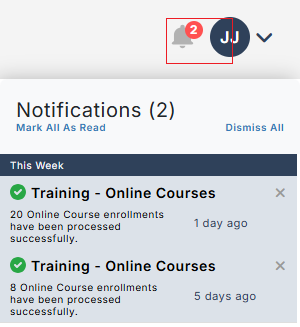
Once you click Enroll, the enrollments will be batched and processed. If there are any issues with any part of the enrollment (ex., not enough enrollments), SMS will alert you.
Step 4 - Save your selected courses as a curriculum view for use again in the future
Finally, if the courses you selected are a common set of courses you frequently use, you can save the selected courses as a view to use again and again. Click the COG menu to save and name the View.
