


Team Driving - Separate Devices - iPhone®/iPad®
This article outlines how to use Encompass® ELD’s Team Driver Login with multiple iOS devices, allowing each Driver to track Hours of Service separately. Both Drivers log in with their credentials, enable Team Driver Login, and select “Separate Device.” Only one device can connect to the ELD, so the first Driver to drive should connect. Each Driver selects log type, duty status, and enters trip information, then links accounts by entering the other Driver’s mobile username. A Team Driving icon confirms the setup for separate-device Team Driving.
NOTE: BOTH DRIVERS WILL PERFORM THE SAME STEPS ON THEIR OWN DEVICES.
Team Driving Instructions for Multiple iOS Devices
Enter the driver's Username and Password. Toggle Team Driver Login on (showing green). Tap Login.

Each driver will be presented with two options - Shared Device and Separate Device. Drivers should select Separate Device.

The user may then be presented with the ELD Discovery screen if the ELD is not connected to the mobile device. *Only one device can be connected to the ELD; the driver who will be driving first should connect to the ELD.
Indicate the type of log. Tap OK.

Then, the drivers will choose the applicable duty status. Tap Next.

Each driver will fill in their own Trip Information, as this information is not passed between the devices. (If logs are missing, an alert will display.) Click OK when finished.

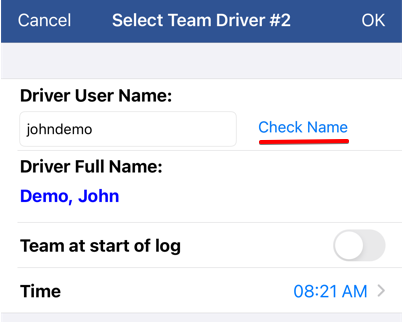
Next, each user will enter the mobile username of the other team driver. Tap Check Name. Once the correct second driver's name populates, click OK to proceed.
The home screen will appear and a team driving icon will appear next to the driver's name. This indicates the driver is in a separate device team driving scenario.
 OR
OR 