


Team Driving - Shared Device (Android)
This article explains how Team Drivers can use Encompass® ELD’s Team Driver Mode on a shared Android device to track Hours of Service. The first Driver logs in, connects to the ELD, selects “Shared Device,” chooses log type and duty status, and enters trip information (which carries over to the second Driver). The second Driver then logs in, updates any differing trip details, and both Drivers can designate who will drive first. The home screen displays a Team Driving icon and indicates the active Driver. To switch Drivers, users access the Dashboard, select the next Driver, and toggle “Assume Driving Responsibilities” to ensure drive time is logged correctly.
One of the drivers will login first. Enter the Username and Password. Switch the toggle "on" next to Team Driver Mode. Click Login.
The user will be presented with the ELD Connection & Discovery screen if Connect to ELD Hardware was toggled on from the Login screen. The second user won't see this screen unless the first user does not connect to the ELD. Connect to the ELD.
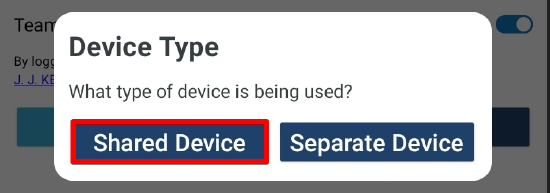
The driver that logs in first will be presented with two options: Shared Device and Separate Device. For this scenario, select Shared Device.
Indicate the type of log.

Select the appropriate status and location. Tap Submit Status.

Each user will fill in their own Trip Information, however, the information Driver 1 enters here will be automatically filled in for Driver 2. Driver 2 will only need to amend the information if their trip information varies. Tap OK when complete.
*If logs are missing, an alert will display.

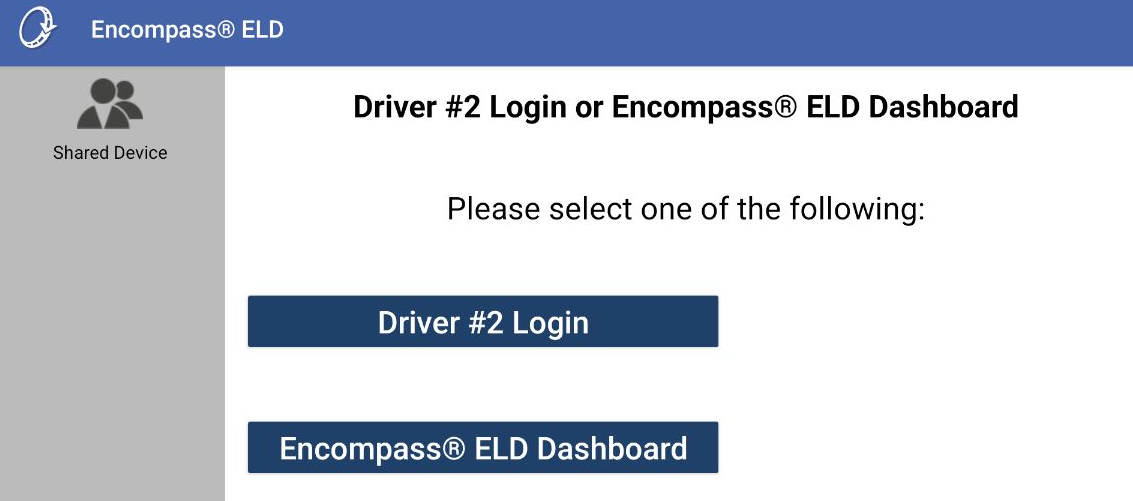
At this point, the user can decide to have Driver #2 Login OR go directly to the Encompass® ELD home screen. (The second user will have the ability to log themselves into Encompass® ELD via Menu once at the Encompass® ELD Dashboard.) Continue below for Driver #2 Login instructions.
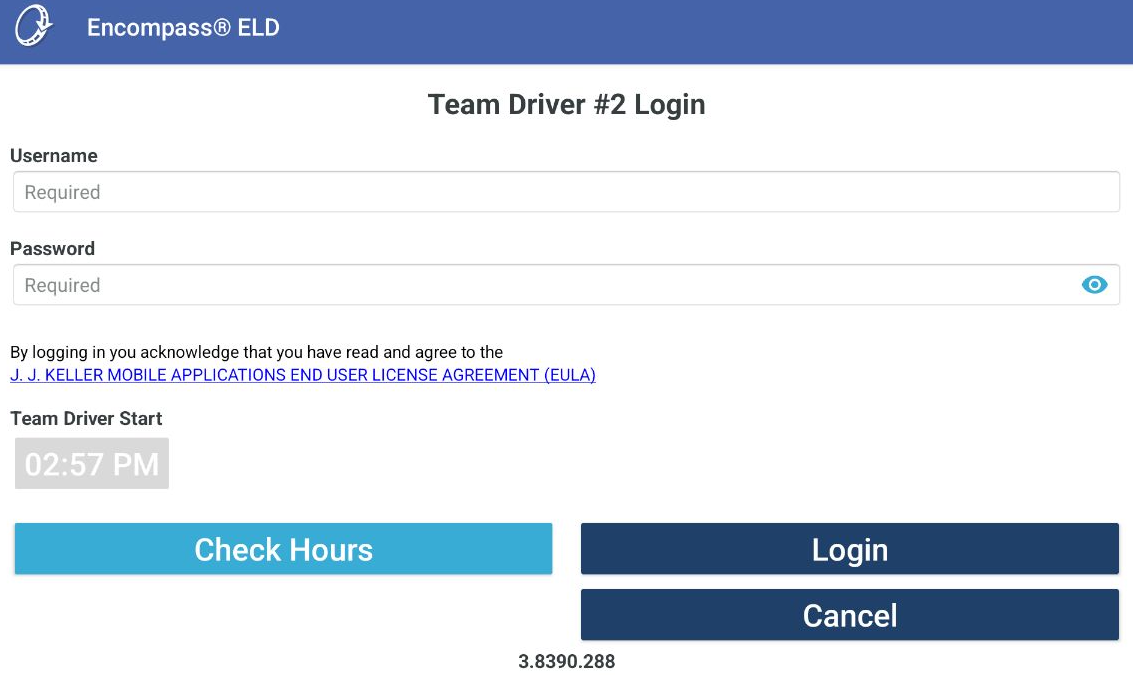
The second driver should press OK to the safety warning, and then log in with their username and password. Tap Login.
The second driver will then go through the same login process that the first driver did, by selecting and submitting their duty status and entering their trip information. Any information entered by Driver 1 will carry over to Driver 2; however, this information can be edited if necessary. Tap OK when finished with Trip Information.
 OR
OR 

If both users choose On Duty for their status, the Select Team Driver screen will appear to allow drivers to select who will drive first. Select the name of who will drive first.

The home screen will appear. Notice the new team driving icon in the green bar and the steering wheel icon that shows which user is marked as the driver. This means that any driving that occurs will be applied to that driver's log.
 OR
OR 
When it is time to switch who is driving, one of the drivers must tap the name displayed in the green bar on the dashboard. The Switch Encompass® ELD User screen will be displayed. Select the next driver from the drop-down under Select User. Once selected, if the next driving segment should be on their log, toggle Assume Driving Responsibilities on. Press OK.

The other driver's name will now display in the green bar with the steering wheel icon next to their name, indicating that they are marked as the driver and any drive time recorded will be placed on their log.