


Adding/Editing Timesheets
Adding Timesheets
Users with add permissions can add a new timesheet entry from three locations:
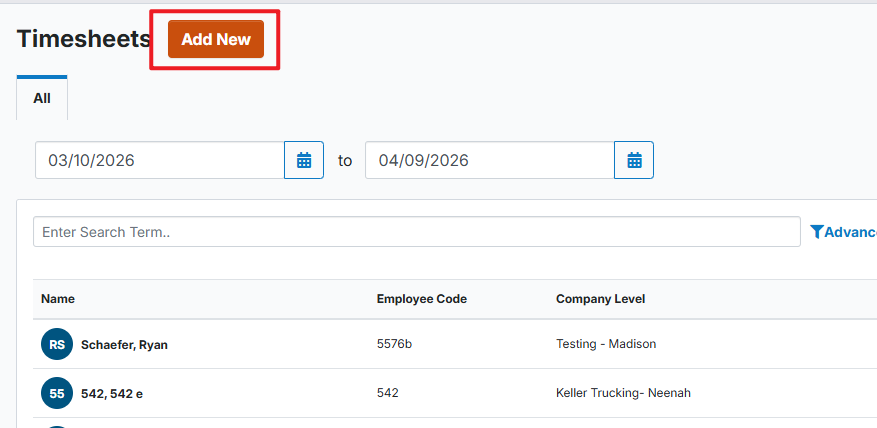
- From the Timesheets roster, the Add New button at the top of the page
- This will open the Add Timesheet modal in which the user must select the Employee
- From the Timesheets roster, the Add New hover action on the right side of the screen for a specific driver
- This will open the Add Timesheet modal in which the Employee has already been set

- From the Drivers Profile in the Timesheets Tab, the Add Timesheet button
- This will open the Add Timesheet modal in which the Employee has already been set

The Add Timesheet contains the following fields:
- Employee (required) - If not already determined, search and select the employee. Only employee with the Timesheet Only ruleset are available.
- Date (required) — Select a date using the MM/DD/YYYY date picker. Future dates are not permitted and will appear grayed out.
- Clock In / Clock Out (required) — Enter clock in and clock out times in HH:MM AM/PM format. Times can be entered manually (numbers only) or selected using the time picker.
- Use the Add another button to add additional Clock In/Clock Out rows for the same day.
- Hover over a row to reveal the Delete (trash can) icon to remove that entry. Note: the delete icon is not available when only one entry exists.
- Rows can be reordered using the grip dots at the left of each entry.
- Notes — Optional. Add any relevant notes for the timesheet entry.


Note: A timesheet cannot be created for a date that already has an existing entry. If a duplicate is attempted, the following error will display: "Cannot create new timesheet. A timesheet already exists for the given date."
Editing a Timesheet
To edit an existing timesheet entry:
- Navigate to the driver's Timesheets tab.
- Locate the timesheet entry and click the Edit button, or open the Timesheet Entry Detail page and click Edit.

The Edit Timesheet modal is pre-populated with the existing entry data and includes the same fields as the Add Timesheet modal:
- Date — Pre-populated; can be changed.
- It can only be changed to a date in which a timesheet doesn't already exist
- Clock In / Clock Out — Pre-populated; can be edited, added to, or removed (hover to reveal the Delete icon). The delete icon is not available when only one entry exists.
- Notes — Optional.