


Asset Tracking - Viewing Data in Connected Devices List
Asset Trackers are found in the Connected Devices List by going to Settings > Vehicles > Encompass Device Settings > Connected Devices List.

To view details of the Asset Tracker, click the Serial Number.
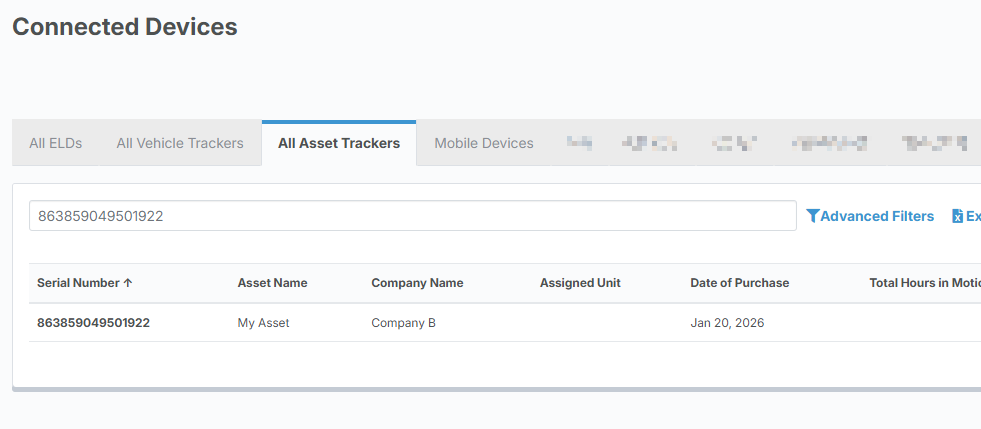
There are a number of data elements you can view:
- Serial Number
- Supplied by the device is the IMEI on the side of the device.
- Asset Name
- Provided by the user; might be blank.
- Company Name
- Required for data to come to Encompass.
- Assigned Unit
- Not required.
- Date of Purchase
- This is used to understand warranty timeframes.
- Check-In Frequency Parked
- Determines how frequently the device will ping when motion is not detected.
- Check-In Frequency In-Motion
- Determines how frequently the device will ping when motion is detected.
- Stop Time Duration
- Definition of stopped.
- Current Address, City, State and Zip
- Reverse Geocoded Address (the device supplies GPS coordinates and we translate it).
- Last Check-In Date and Time
- Date and Time the last time the device checked in.
- Last Parked Time
- Last time the device checked in as Parked (stopped for the stop time duration).
- Battery Level
- Signal Strength
- This is cellular signal strength (can display as Excellent, Good, or Poor).
- Run Hour Estimate
- Approximately how long the asset has been in motion.
- Total Mileage
- Total distance the device has traveled.
- Trip-Mileage Since Last Reset
- Users can reset Trip Mileage back to 0.
- Date of Last Reset
