Company Information
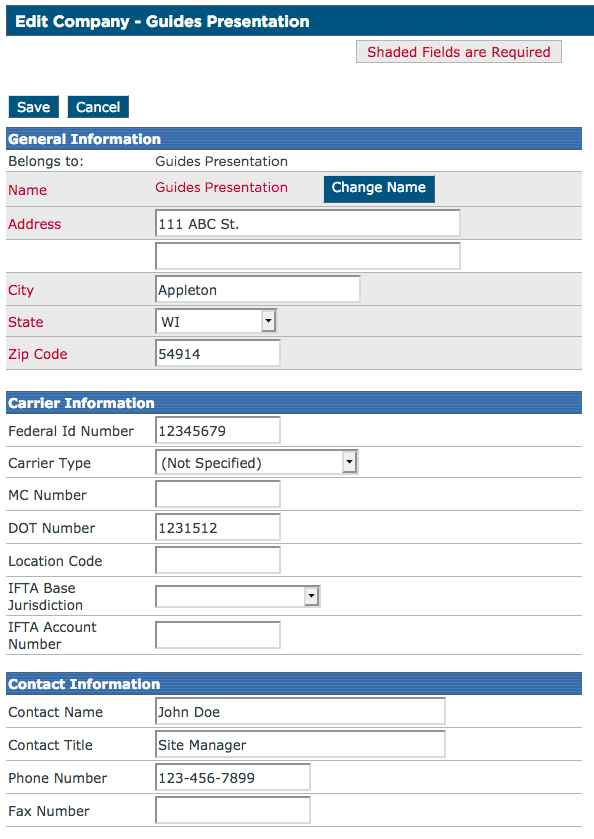
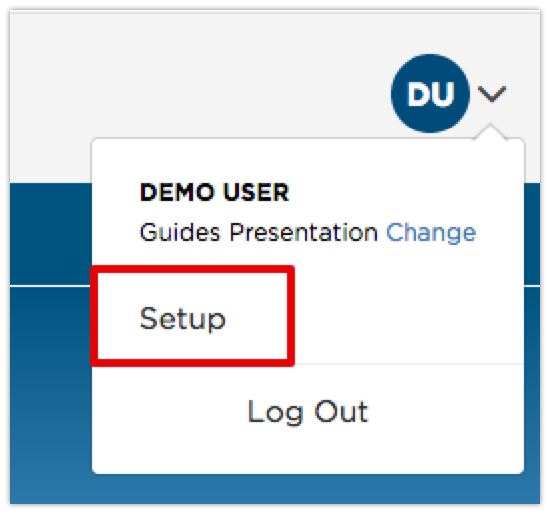
Basic information about your company, such as Company Name, Address, and DOT number can be added in Encompass via Setup.
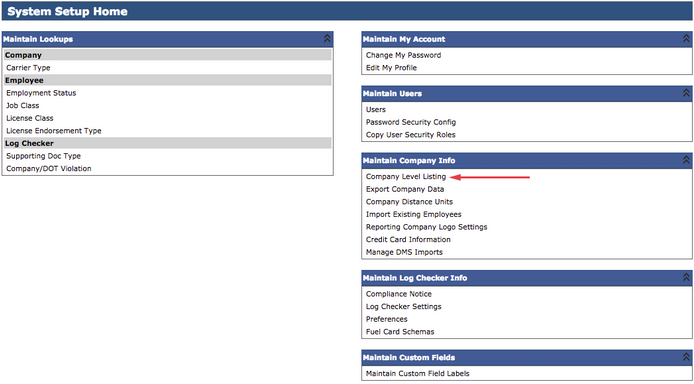
From there, click on Company Level Listing in the Maintain Company Info box.
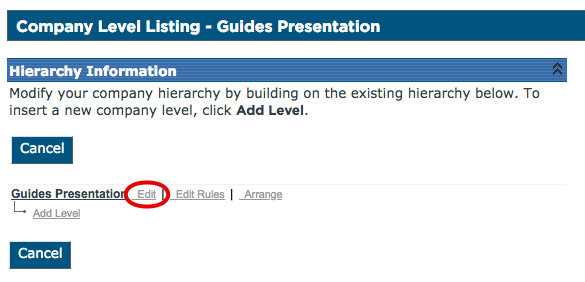
Click Edit next to the company name.
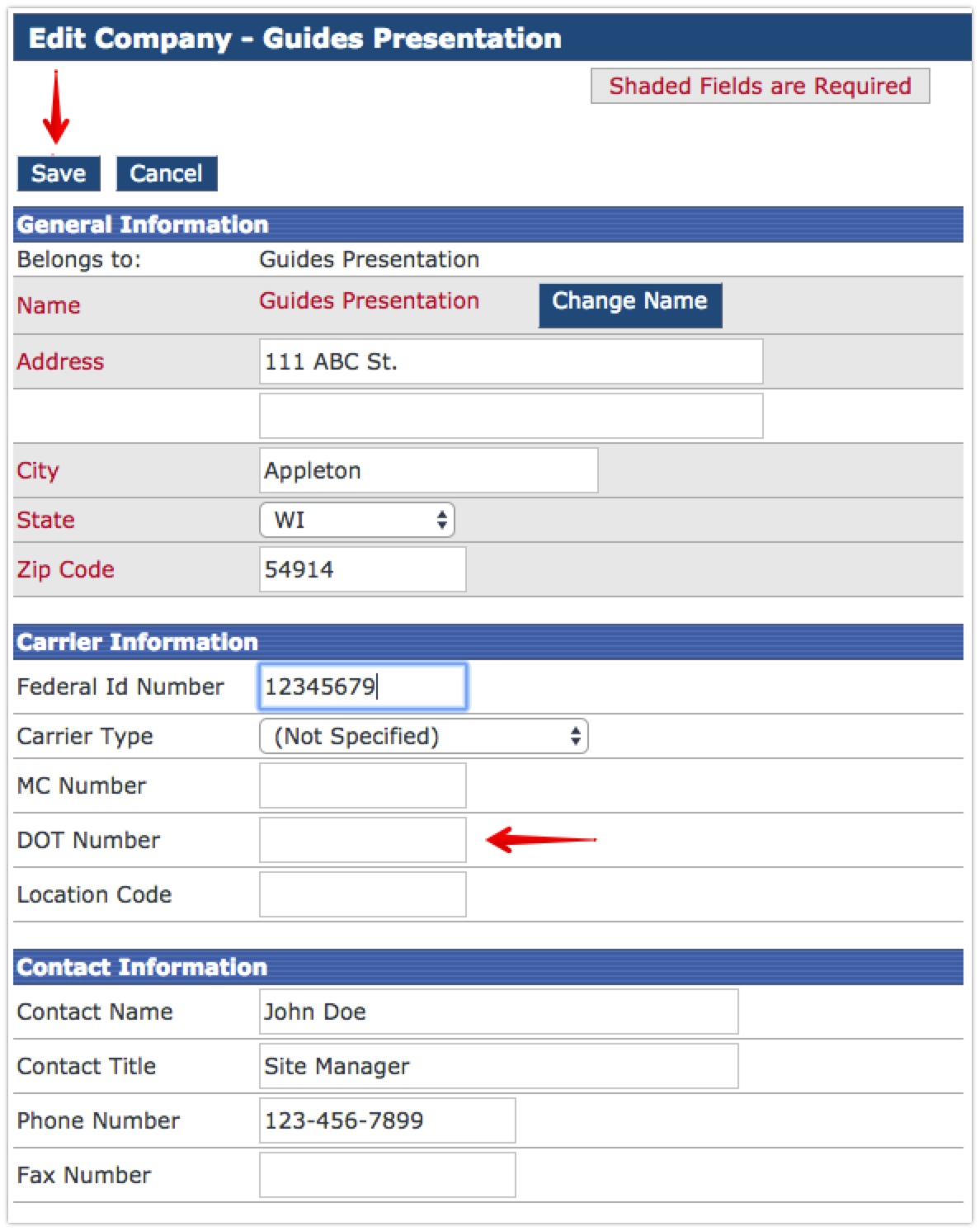
Enter in the appropriate information. Note: Fields in red are required. Additionally, the DOT Number field is not a required field, however, the DOT number is required by the DOT in a Roadside Inspection. This is where it is entered. Once all necessary information is entered, click Save at the top or bottom of the page.
Changing the Company Name
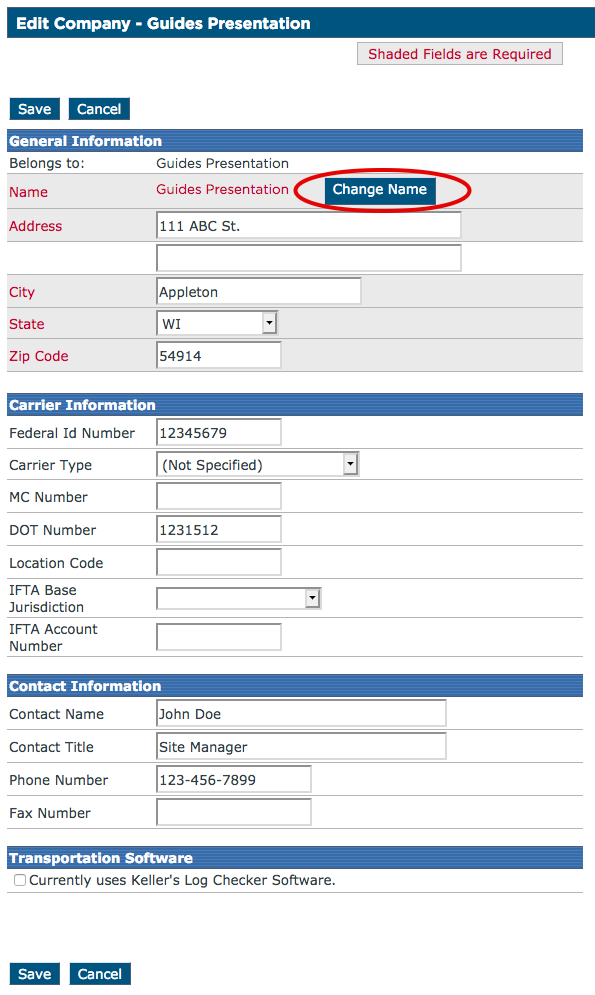
If the company name needs to be changed, select Change Name next to the company name.
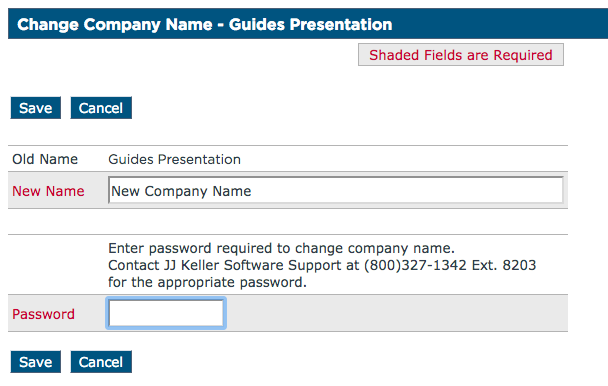
Enter the new company name and the password provided by Product Support. Note: This password is a generated that changes daily. Please call Product Support at the number listed to obtain the daily password and change the company name. Select Save to store the new company name.
Once all necessary company info is entered, select Save to store it.