Un-Enroll Learners From a Course/Curriculum
This article outlines how to un-enroll Learners from E-Learning Courses or Curriculums in Training Management Center (TMC) using 2 methods: from the E-Learning Course/Curriculum page or directly from a Learner’s profile. To un-enroll multiple Learners at once, navigate to the course or Curriculum information page, select the Learners, click the Un-Enroll button, and confirm the action. Alternatively, individual learners can be un-enrolled by opening their profile, accessing the Courses/Curriculums tab, selecting the course, and confirming un-enrollment. This process permanently removes Learners from the course or Curriculum but allows re-enrollment if needed. The steps ensure efficient management of Learner participation and course/Curriculum assignments.
REMINDER
The Due Date is the date in which the learner should finish the course by. This is set by the training coordinator/TMC admin during enrollment. The system expiration day applies to all courses and curriculum's and is not changeable; learners have 180 days from the date of enrollment to start the course. If the course/curriculum is not started in those 180 days, it will expire and the enrollment will be refunded back to the company's account. If the course/curriculum IS started but is not finished/expires, the enrollment will not be refunded.
*Please note that a Learner may only be unenrolled if they have not started the course and it has not expired.
e-Learning courses
Course Information Page
To un-enroll multiple Learners from a course at once, first go the course's information page. From the Catalog tab, click E-Learning Courses.

Locate and click on the desired course.

Check the box next to the Learner/s you would like to Un-enroll from the course. Then, click the Un-Enroll button.

Confirm the un-enrollment. This will permanently remove the Learners from the course. You can enroll them back in the course if needed at a later time.

Learner Profile
Go to Manage Learners and open the desired Learner's profile.


Select the Courses tab.

Check the box next to the course needing to un-enroll the Learner from. Then, click Un-Enroll.

Confirm the un-enrollment.

Curriculums
Curriculum Information Page
To un-enroll multiple Learners from a Curriculum at once, first go the Curriculum's information page. From the Catalog tab, click Curriculums.

Locate and click on the desired Curriculum.

Check the box next to the Learner/s you would like to Un-enroll from the Curriculum. Then, click the Un-Enroll button.

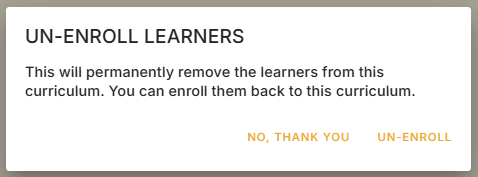
Confirm the un-enrollment. This will permanently remove the Learners from the Curriculum. You can enroll them back in the Curriculum if needed at a later time.

Learner Profile
Go to Manage Learners and open the desired Learner's profile.
Select the Curriculums tab.

Check the box next to the Curriculum needing to un-enroll the Learner from. Then, click Un-Enroll.

Confirm the un-enrollment. This will permanently remove the Learners from the Curriculum. You can enroll them back in the Curriculum if needed at a later time.