


Add an Accident Record
This article outlines how to add a new accident record in FleetMentor. Users can initiate this via the Add Accident button in the Accident Toolbox, Accident Roster, or through the DOT Post-Accident Wizard. The Add Accident Record drawer requires all fields marked with a red asterisk (*), and Drivers not yet in the system can be added directly from the drawer. FleetMentor can generate an Accident Number, which can be edited if needed, and the Post-Accident Wizard helps determine if the accident is DOT recordable. After entering all required information, clicking Save adds the accident, with additional details able to be updated later via the Accident Roster.
There are several ways to initiate the addition of an accident:
- Add Accident button in the Accident Toolbox
- Add Accident button within the Accident Roster
- Complete the DOT Post-Accident Wizard and select the Add Accident button
The Add Accident Record drawer will display for accident details to be entered: all required fields are marked with a red asterisk (*)
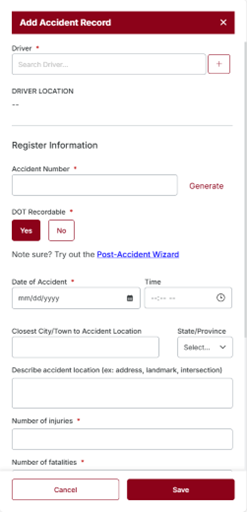
Not finding the driver from the Driver Search box? The driver may not yet be entered into FleetMentor. Press  to add the driver. Once the driver is added, the newly added driver and the driver’s assigned location will auto fill in the drawer.

Need help coming up with an Accident Number? With the use of the Generate button, FleetMentor will create an Accident Number for you. If you don't like the format, don't worry, you can always edit, delete, or completely change our generated Accident Number. The general format of the accident number will be A-YYYY-MM-#### with YYYY representing the current year, MM representing the current month, and #### representing the next number in line for Accidents Numbers generated by FleetMentor. Please note, if another user is adding an Accident Record at the same time and generates an Accident Number as well, you may encounter an error indicating that the number is already in use. To resolve this, simply click the Generate button again to create a new Accident Number.
Not sure if your accident is DOT Recordable? Post-Accident Wizard is accessible through the Add Accident Record drawer to help you!
Once you've entered all required fields, select  to add the Accident Record.
Need to add additional information now that the Accident Record was added? See Accident Roster to find and select the accident.