


Entering a Fuel Receipt
This article explains how Drivers using the Encompass® ELD mobile application can enter fuel receipts for Fuel Tax reporting. The process begins by navigating to the “Enter Fuel Receipt” option in the app menu, then selecting “Add New” (Android) or the plus icon (iOS). Drivers must input purchase details, including fuel quantity (in gallons or liters), state of purchase, vehicle number, purchase type, date/time, total purchase price, vendor, and invoice number. Accurate entry—especially the vehicle number—is critical to avoid unassigned fuel purchases. Saved entries remain in the app until the Driver logs out and submits logs, at which point the data is sent to the Encompass back office.
To enter a fuel receipt:
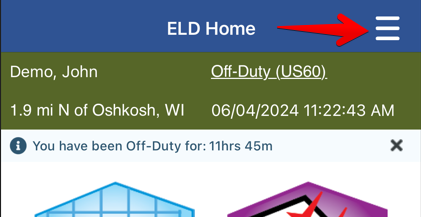
Go to the menu in the upper right corner and select Enter Fuel Receipt.
| ANDROID™ | IPHONE®/IPAD® |
|---|---|
|
|
|
 OR
OR

 OR
OR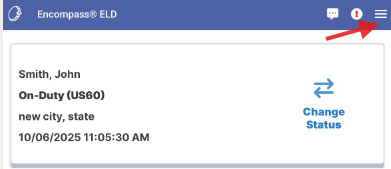

The following screen will display any existing fuel purchases within Encompass® ELD that have not been submitted to Encompass yet. This screen is also where a new fuel receipt can be entered.
On Android™ devices, select Add New in the upper left corner to add a fuel receipt; on iPhone®/iPad® devices, select the plus (+) in the upper right corner.
| ANDROID™ | IPHONE®/IPAD® |
|---|---|
|
Tap Add New.
|
Tap the plus (+) in the upper right corner.
|


Next:
- Enter the amount of fuel that was purchased.
- If the value should be in liters instead of gallons, tap on Gallons and change it to Liters.
- Note: The value entered here should not contain decimals. Gallons/Liters should be rounded to the nearest whole number.
- Enter the two-letter abbreviation of the state where the fuel was purchased (ex: WI).
- If Encompass® ELD is connected to the ELD, the Vehicle Number should automatically populate the tractor number.
- If the ELD is disconnected from Encompass® ELD, this field will be blank, at which point the driver will need to manually enter the vehicle number.
- Important: If the driver needs to manually enter the vehicle number, it must match exactly what the vehicle number is, otherwise it will come into Encompass as an Unassigned Fuel Purchase.
Press OK when finished.
| ANDROID™ | IPHONE®/IPAD® |
|---|---|
|
|
|


Next, select the appropriate Purchase Type.
- With Receipt should be selected if there is proof of purchase, i.e. a receipt.
- Without Receipt should be selected if there is no proof of purchase, i.e. no receipt
- Bulk should be selected for bulk fuel in which the tax has already been paid
- Tax No Paid Bulk should be selected for bulk fuel in which the tax has not yet been paid
- Reefer should be selected if the purchase was for reefer fuel
Note: if any of these fuel types are not an option within Encompass® ELD, they may need to be added within Encompass by your administrator.
If the driver is entering the fuel purchase sometime after the purchase was made, they can change the date and time here to reflect when the purchase was actually made. (Tap on the date/time to change.) If the driver is entering the fuel receipt at the time of purchase, the date and time will accurately reflect the time of purchase and will not need to be adjusted.
Press OK when finished.
| ANDROID™ | IPHONE®/IPAD® |
|---|---|
|
|
|


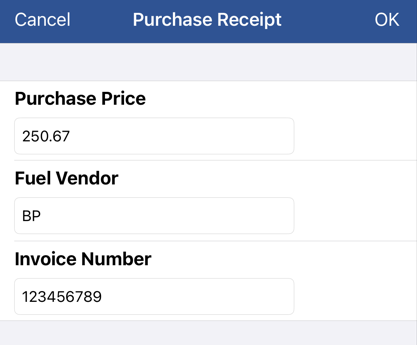
Enter the Purchase Price. This price should be the full amount of the purchase, not the price per gallon/liter.
Enter the Fuel Vendor.
Enter the Invoice Number. This would be the transaction identifier on the receipt.
Press OK to save the purchase.
| ANDROID™ | IPHONE®/IPAD® |
|---|---|
|
|
|

Once saved, the fuel purchase will remain in the Encompass® ELD application until the next time the driver logs out and submits their logs, at which time the fuel purchase will be sent to the Encompass back office.