


TMC API Portal - Getting Started Guide
The J.J. Keller Training Management Center API Portal allows your organization to connect your internal systems directly with TMC. This means your IT team can automate tasks like syncing employees as Learners, enrolling them in courses, and pulling training completion data — without manual data entry in TMC.
Note: API access is available to Enterprise-level TMC subscriptions. Your organization is responsible for building and managing the integration, typically through your internal IT team or a third-party developer. J.J. Keller does not provide a pre-built integration.
What can the api do?
The TMC API is organized into 7 areas. Your IT team can use any combination of these to build your integration.
Learners
Manage the people in your TMC account.
| Action | What It Does |
| Add a Learner | Create a new Learner record. |
| Get Learners | Retrieve a list of all Learners on your account. |
| Update a Learner | Update a Learner's profile information. |
| Add or Update a Learner by Name | Create or update a single Learner matched by first and last name — useful when syncing from a system that doesn't store TMC IDs. |
| Bulk Add or Update Learners | Add or update up to 1,000 Learners at once — each record succeeds or fails independently. |
| Remove a Learner |
Deactivate a Learner (their training history is preserved). |
Enrollments
Control which learners are assigned to which courses.
| Action | What It Does |
| Enroll Learner(s) in a Course | Assign one or more Learners to a course. |
| Get Enrollments for a Learner | Retrieve all course enrollments and training results for a specific Learner, including completion status, scores, and due dates. |
| Unenroll a Learner | Remove a Learner from a course. |
| Update an Enrollment Due Date | Change the due date on an existing enrollment. |
Course Catalog
| Action | What It Does |
| Get Courses | Retrieve the full list of courses available to your account. |
Training Videos
| Action | What It Does |
| Get Videos | Retrieve the list of training videos available to your account. |
| Get Remote Classroom Access Code | Generate a temporary Access Code for a video-based remote classroom session. |
Learner Groups
Organize Learners into named Groups for easier bulk enrollment and reporting.
| Action | What It Does |
| Change a Learner Group | Add a new Group (name must be unique within your account). |
| Rename a Learner Group | Update an existing Group's name. |
| Delete a Learner Group | Remove a Group and its memberships (Learners themselves are not deleted). |
Learner Locations
Control which Location(s) a Learner is associated with, which determines which Training Coordinators can manage them.
| Action | What It Does |
| Assign a Learner to a Location | Link a Learner to a Location. |
| Update a Learner's Location | Modify an existing Learner-Location assignment. |
| Remove a Learner from a Location | Unlink a Learner from a Location (Learner and training history are not affected). |
Notifications
| Action | What It Does |
| Resend a Course Reminder | Re-send a Reminder email for one or more enrollments, to the Learner's primary or secondary email address. |
| Resend a Course Announcement | Re-send the Enrollment Announcement email for one or more enrollments. |
💡Full technical documentation for each endpoint — including required fields, sample requests, and response formats — is available in the APIs section of the portal once you are registered. Use the "Try it out!" feature to test any call against your live account before building.
Setting up your api access
Step 1 — Create Your Portal Account
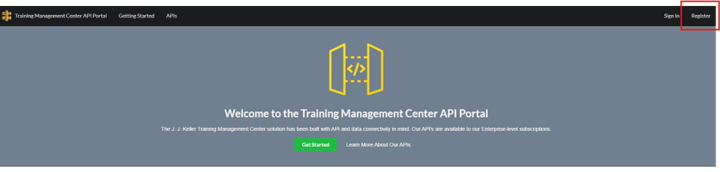
- Go to apimanagement.jjkellertraining.com and click Register in the top-right corner.
- Fill out the Registration Form:
- Email: Your TMC Training Coordinator email address — this must match your TC login exactly. This is how the portal links to your TMC account and grants access to all of your Locations.
- Password: Choose a secure password. It does not need to match your TMC password — and for security, it should not be the same one.
- Check your inbox for a verification email from no-reply@verificationemail.com with the subject "Developer Portal - Verification Code." Enter the code on the portal to confirm your account.

⚠️ Don't see the email? Check your spam or junk folder. If your organization has strict email filtering, ask your IT team to whitelist verificationemail.com.
Step 2 — Get Your API Key
Your API Key is the unique credential your IT team will use to connect your systems to TMC.
- Sign in and go to your Dashboard.
- Copy your API Key and share it securely with your IT team or developer.
Step 3 — Subscribe to the TMC API
Your API Key won't work until it's activated for the TMC API.
- Click APIs in the top navigation.
- Find the TMC API and click Subscribe.
Once subscribed, our Development Team is notified, reviews your request, and provides any additional access credentials needed to connect to the API endpoints.
Step 4 — Build Your Integration
Share the following with your IT team or developer to get started:
- Your API Key from the portal dashboard.
- The API documentation under the APIs tab in the portal.
- The "Try it out!" button on each API page — this lets your developer test live calls against real TMC data before writing any code.
💡 Not sure where to start? A common approach is to use a middleware application as a bridge between your HR or payroll system and TMC. Your IT team or a third-party developer can use the API documentation in the portal to scope out the work. J.J. Keller does not provide a pre-built integration or middleware.
Monitor your Usage
Each API Key has usage limits. You and your IT team can track how many API calls have been made at any time from your Dashboard.
Troubleshooting
Review the basic troubleshooting steps below to help quickly resolve common issues.
| Problem | What To Do |
| Verification Code email didn't arrive | Check spam/junk; ask IT to whitelist verificationemail.com. |
| Portal shows no Locations or Learners after signing in | Your registration email likely doesn't match your TC email — contact TrainingOnlineSupport@jjkeller.com. |
| IT Team is getting "Unauthorized" errors | Confirm the API Key has been subscribed to the TMC API (Step 3 above). |
| Forgot your portal password | Use Forgot Password on the sign-in page — this only resets your portal password and has no effect on your TMC login. |
| Questions about building the integration | Contact TrainingOnlineSupport@jjkeller.com or call 1-888-601-2018. |