Exempt Logs (iPhone®/iPad®)
This article explains how 150 Air-Mile-Radius exempt drivers can use the Encompass® ELD system to track hours and maintain compliance. Administrators must first enable the Exempt Log functionality in the back office. Once logged in, drivers select “Exempt Log” and confirm requirements, with the Dashboard displaying “Exempt” in the duty status bar. In Exempt mode, the Driving Hours Available clock shows N/A, and log views only display On Duty and Off Duty time combined. Drivers can also view Recap info, edit trip details, and add log remarks as needed. If the exempt log is converted to a standard log mid-day, trip information will be required.
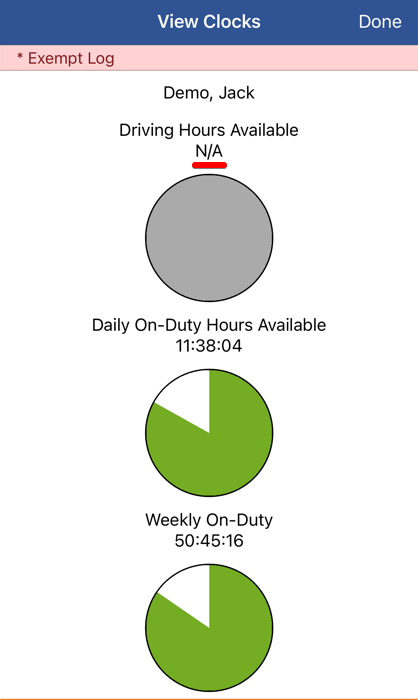
When operating in an exempt driving status, the Driving Hours Available clock will be grayed out and display driving hours as N/A when the vehicle is in motion.
Logging In on iOS - Exempt Driver
Launch Encompass® ELD and login.

Tap on Exempt Log. The driver will be presented with an Exempt confirmation message, listing the requirements they must comply with in order to create an exempt log for today. Press OK to proceed.

Select your current duty status.

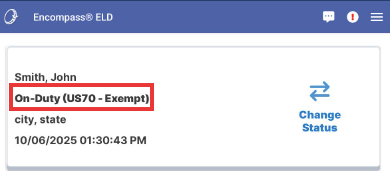
The duty status in the green bar of the dashboard will indicate "Exempt". (New customers will see the new Dashboard screens).

Viewing the Log/Hours - Exempt Driver
All Log views within the View Log area will identify that an *Exempt Log is in use.
Click View Log from the ELD dashboard.


Grid View
The Grid screen displays only on-duty and off-duty time, even if the driver has driven the vehicle. Both driving and on-duty are combined into on-duty time.

Hours Available View
Tap Hours (at the bottom). Drive time and rest break information is not shown here.

View Clocks
Tap More at the bottom, and then View Clocks. The Driving Hours Available clock is grayed out and the available driving time is displayed as N/A.


View Recap Info
Tap More at the bottom, and then View Recap.


Trip Info
Tap More at the bottom, and then View Trip.

To update Trip Information, tap Edit. Then, update any information as applicable. Select OK.


Note: Drivers will NOT be prompted to enter Trip Information when using the exempt log function. If their log is converted to a standard grid log during the day, they will be prompted to enter Trip Information at that time.
View, Add and Edit Log Remarks
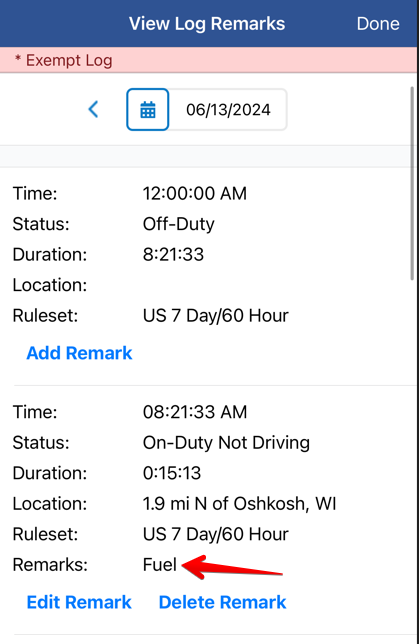
Log Remarks can be added, if needed. Tap Log Remarks at the bottom of your screen. Select Add Log Remark from the status in which a note should be added. These remarks are meant to provide additional information as to what occurred during a particular duty status.

Select a commonly used remark from the Select Remark arrow, or tap in the text box to enter your own remark. Tap Save when complete. The remark will then be shown on the status. You can also Edit or Delete a remark.