


Contact Customer Via Teams
This article provides a step-by-step guide for Representatives on how to initiate and manage a customer call using Microsoft Teams ONLY when unable to dial out or phone systems are down. It outlines how to start an instant meeting from the Teams Calendar, join with computer audio, and add participants by dialing a customer’s phone number. The process includes troubleshooting steps if the dial-out option is unavailable, directing users to submit a JJK Service Desk ticket. The guide ensures efficient customer communication using Teams' built-in meeting and calling features.
Steps:
1. Open Teams and Go to Calendar
- Click the Calendar icon in the left-hand menu.

2. Start a Meeting
- Click “Meet now”.

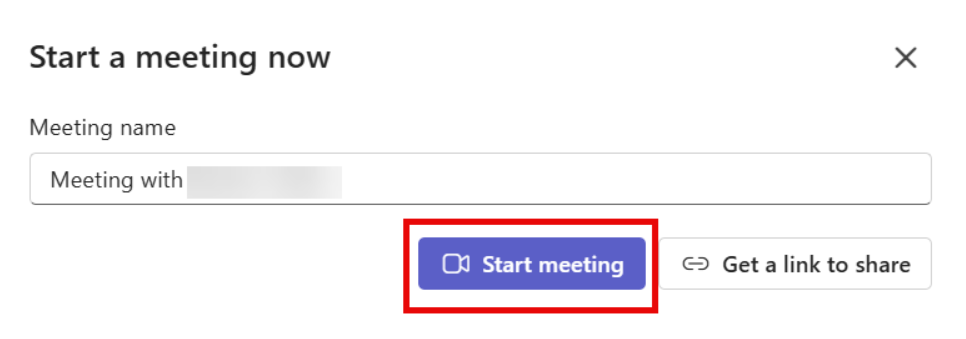
- Then click “Start Meeting”.
- Ensure Computer audio is selected.
- Click “Join now”.

3. Add the Customer
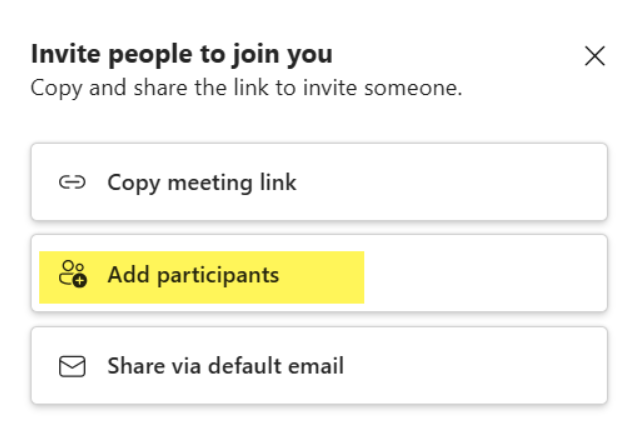
- Click “Add participants”.
- In the “Invite someone or dial a number” field, type the customer’s phone number.

- When the number appears below as “not in this meeting”, click “Add phone”.
- Teams will dial the number and connect the customer to the meeting.

4. End the Call
- Click “Leave” to end the meeting.
Troubleshooting:
Can’t Dial a Number?
- If you can invite people but don’t see the option to dial a number, submit a JJK Service Desk ticket for assistance.